Connect another platform with a data source
Connect a store that isn't on Shopify by adding a data source, handing the setup to your developer and checking that events arrive.
A data source is a connection that receives events from your store or another tool, such as a new order or a checkout the shopper left. Use one if your store runs on a platform other than Shopify, or is custom-built. Each event type your store sends can start its own campaign.
Most of the setup is done by your developer. This guide covers your part: adding the data source, handing over the details and checking that it works. Your developer follows the Custom integration quickstart.
Before you start
- Find out who manages your store's code or platform settings. You need their email address.
- WooCommerce has its own ready-made setup. See WooCommerce setup.
Send the guide to your developer
The quickest way to start is from Finish setup.
Open Connect your store
In the left menu, click Finish setup, then open Connect your store, or open it directly. Under Where do you sell?, choose Another platform or a custom-built store.
Send the guide
Enter your Developer's email and, if you like, a note. Click Send the guide. VYG drafts an email with the setup guide in your email app. Send it.
To share the guide another way, click Copy link instead and paste the link into a message.
Keep setting up
You see Your developer has what they need. You can carry on with the other setup steps. Connect your store checks itself off when your first order comes through.
Most developers finish in under a day.
Add a data source yourself
If you or your developer prefer to set it up in the app, add the data source directly.
Open Data sources
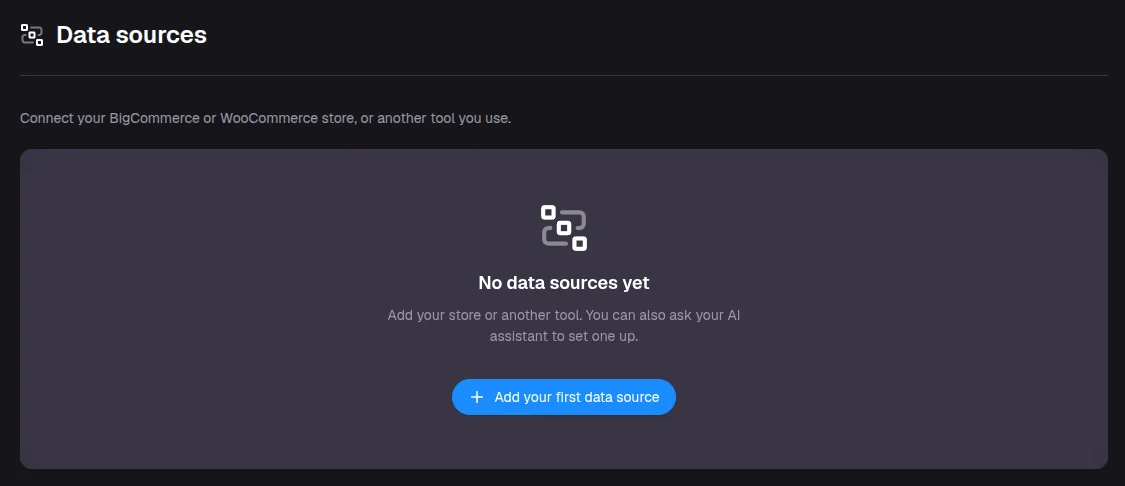
Go to Settings > Data sources and click Add data source. If you don't have one yet, the button is Add your first data source.
Pick the tool
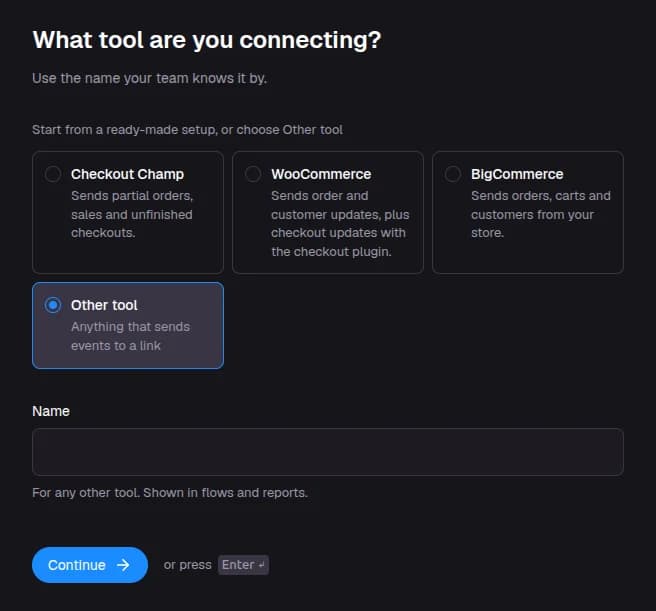
On What tool are you connecting?, choose a ready-made setup if your tool is listed, such as WooCommerce or Checkout Champ. Otherwise choose Other tool and give it a name. The name is shown in campaigns and reports. Click Continue.
Save the webhook URL and signing secret
VYG shows the data source's Webhook URL and signing secret. Your developer needs both.
The signing secret is shown once
Copy the signing secret and give it to your developer straight away, through a secure channel such as a password manager. VYG does not show it again. If it is lost, you can replace it from the data source's Settings tab.
Add your first event
Ready-made setups, such as WooCommerce and Checkout Champ, come with their events already set up. Follow the screens to the end.
For Other tool, paste an example event from your tool, or ask your developer to send one. VYG reads the event and asks you to confirm its name and which fields hold the customer's email, phone and order ID. Click Finish setup on the last screen.
What your store needs to send
Your developer handles the details. These are the points that affect what you can do in VYG:
- Each event needs an email address or a phone number, plus an order or record ID. Events without a contact are turned away.
- Text campaigns need a phone number. Events with only an email address can't start a text.
- A cart link lets texts send the shopper back to their cart.
- For cart recovery, your store needs to send an event when a shopper starts or updates a checkout, not only when an order is placed.
Check that events are arriving
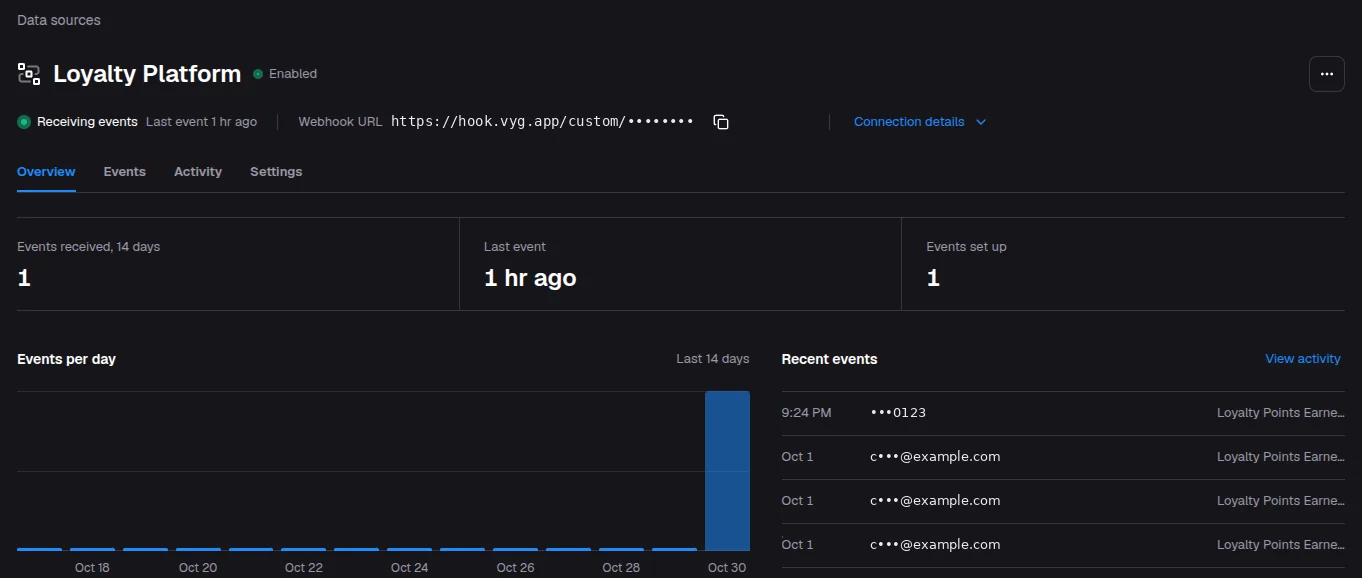
Go to Settings > Data sources and open your data source. The line under its name shows whether events are arriving.
| What you see | What it means |
|---|---|
| Receiving events and Last event 2 min ago | The connection is working. |
| Waiting for the first event | Nothing has arrived yet. Your developer hasn't finished, or their requests are being turned away. |
The Overview tab also shows Events received for the last 14 days and a chart of events per day.
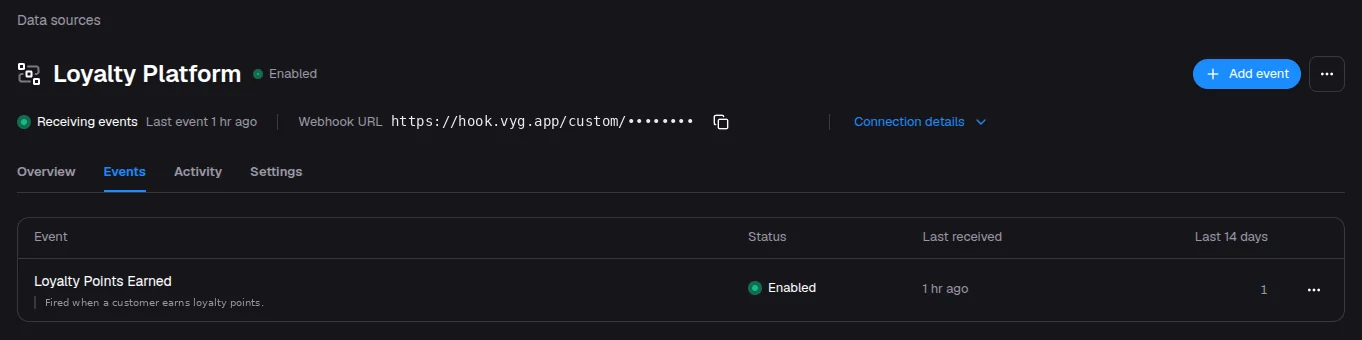
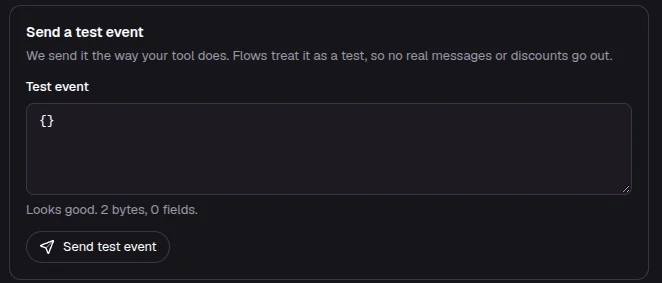
To check an event before your store goes live, open it from the Events tab. On the Send a test event card, paste an example event and click Send test event.
If your developer says they are sending events but the page still shows Waiting for the first event, VYG is turning them away. The most common reasons are a missing email or phone, a signature that doesn't match the signing secret, or an event name that isn't set up yet. Your developer can see the reason in VYG's response. The errors reference lists each one.
Use your events in a campaign
Each event set up on your data source appears in the trigger list when you create a Customer Event (Drip) campaign in Campaigns. For example, to text shoppers who leave a checkout, pick your store's checkout event as the trigger. See Create a campaign that starts when something happens.
The ready-made Shopify triggers, such as Checkout Abandoned, are not available for data sources. Use your own events instead.