Connect your Shopify store
Install the VYG Shopify app so your store's checkouts, orders, customers and products come into VYG.
Connecting your Shopify store lets VYG see checkouts, orders, customers, products and discounts from your store. It also unlocks the ready-made campaign triggers, such as Checkout Abandoned and Order Shipped. It takes about two minutes.
Before you start
- You need to be the store owner in Shopify, or a staff member with permission to install apps.
- Have your store's
.myshopify.comaddress ready. You find it in Shopify under Settings > Domains.
Connect your store
Open Connect your store
In the left menu, click Finish setup, then open Connect your store, or open it directly. Under Where do you sell?, choose Shopify.
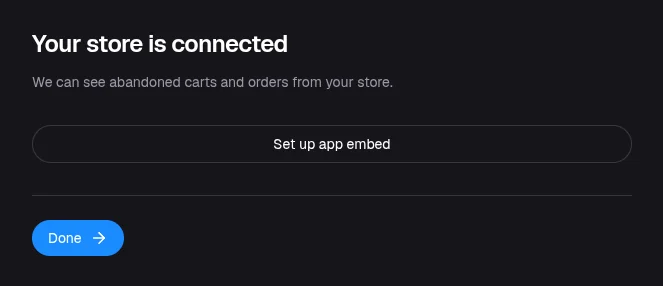
If you connected your store during sign-up, this step already shows Your store is connected. Skip to Turn on VYG AI Onsite.
Enter your store address
Under What's your Shopify store address?, enter your address, for example yourstore.myshopify.com. Click Connect Shopify.
Approve the connection in Shopify
Shopify opens and lists what the VYG app can access. Click Install (or Install app) to approve. Shopify brings you back to VYG.
Done
You see Connected to yourstore.myshopify.com. Click Continue to go to the optional app embed. New checkouts, orders and customers start coming in within a few minutes.
If you open the step again later, it shows Your store is connected with Set up app embed.
Turn on VYG AI Onsite
VYG AI Onsite is an app embed in your Shopify theme. It is needed for sign-up forms and for short links in texts that keep the shopper's cart. It is optional, and you can turn it on later.
Open the theme editor
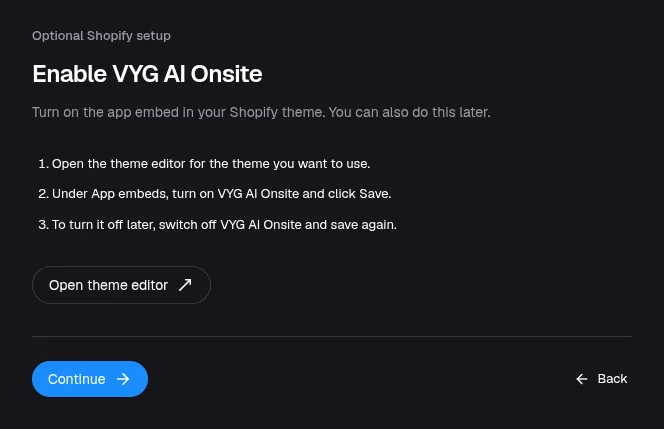
After you connect your store, VYG shows Enable VYG AI Onsite. If you closed it, open Connect your store and click Set up app embed.
Click Open theme editor. Shopify opens the theme editor for your live theme.
You can also go there in Shopify: Online Store > Themes, then Customize on your live theme.
Turn on the app embed
In the theme editor, open App embeds. Turn on VYG AI Onsite and click Save.
Continue
Back in VYG, click Continue.
To turn it off later, switch off VYG AI Onsite in App embeds and save again.
Collect phone numbers at checkout
VYG texts shoppers at the phone number they enter at checkout. Your checkout must ask for a phone number, and its label must tell shoppers they may get texts about their order.
- In Shopify, go to Settings > Checkout. Under Customer information, set Shipping address phone number to Optional or Required.
- Update the phone field's label with the consent wording we give you. During sign-up, the Set up Shopify Checkout to collect phone numbers compliantly screen shows where to change it and the exact wording to use. If you skipped that screen, email service@vyg.ai for the wording.
Shoppers who tick Shopify's Text me with news and offers box can also get marketing texts, such as one-time sends to your subscribers. Shoppers who only entered a phone number get one-to-one texts about their cart or order.
Check that it's working
- Finish setup shows Connected to yourstore.myshopify.com on the Connect your store step.
- In Campaigns, the trigger list for a new Customer Event (Drip) campaign includes Checkout Abandoned and the other Shopify events.
Reconnect or disconnect
If the app is removed from Shopify, Finish setup shows Your Shopify store was disconnected. Reconnect it to keep recovering carts. Open the step, enter your store address and click Connect Shopify to install the app again.
To disconnect, uninstall the VYG app in Shopify under Settings > Apps and sales channels. Your campaigns stop receiving new checkouts and orders.
Troubleshooting
- This store is already connected to another account: the store is connected to another VYG account. If the store is yours, email service@vyg.ai.
- Shopify asks me to log in to a different store: log out of Shopify, then click Connect Shopify again and log in to the right store.
- Connected, but campaigns aren't sending: check that you have chosen a plan and that the campaign is switched on. See Choose a plan and go live.