Choose a plan and go live
Pick a plan, turn on your cart recovery campaign and check that your first texts go out.
Your account comes with a cart recovery campaign that is switched off. It texts shoppers who leave items in their cart, and our support agents answer their replies as your store. To start sending, you need a connected store, a plan, and the campaign switched on.
Open Choose your plan
Pick a plan in your account.
Open Turn on cart recovery
Preview the first text and switch cart recovery on.
Before you start
- Your store is connected. See Choose how to connect your store.
- Texting is set up. A temporary number is enough. See Set up texting and get your own number.
Choose your plan
Open Choose your plan
In the left menu, click Finish setup, then open Choose your plan, or open it directly. You see Choose a plan to start recovering sales.
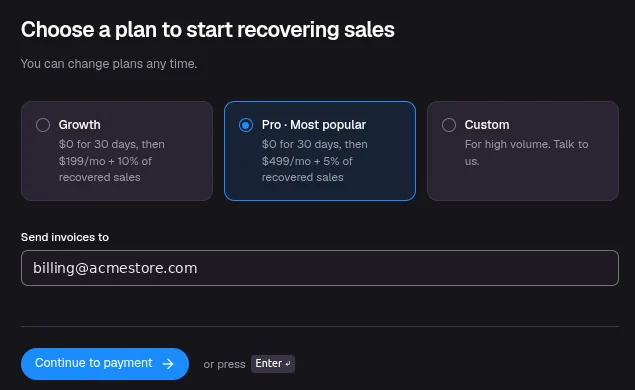
Pick a plan
Choose a Plan. Under Send invoices to, check the email address that should get your invoices.
Finish payment
Click Continue to payment. Payment opens in a new window. When you finish paying, the step moves on by itself.
Campaigns don't send until you have a plan. You can change plans at any time under Settings > Billing.
Turn on cart recovery
Open Turn on cart recovery
In Finish setup, open Turn on cart recovery, or open it directly. You see Here's the first text shoppers get, a preview of the text with your store name.
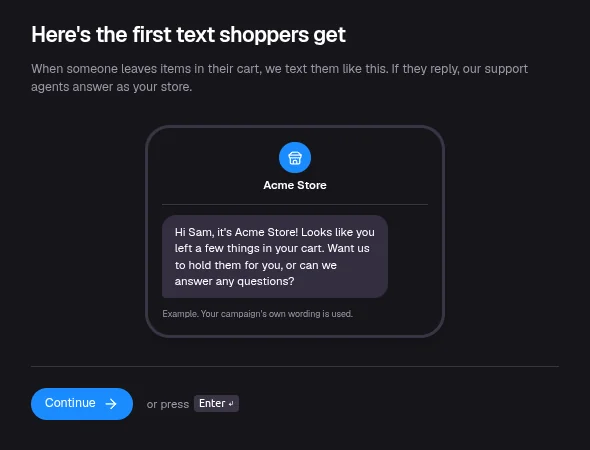
Switch it on
Click Continue, then switch on Cart recovery. If you haven't chosen a plan yet, you see Choose a plan first and the switch stays off.
If you are still waiting for your own number, the texts go out from your temporary number.
Finish
You see Cart recovery is on. Click Finish.
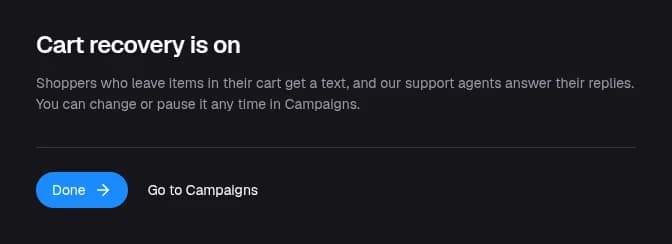
You can change, pause or turn off the campaign at any time in Campaigns.
If your store is connected with a data source
The ready-made cart recovery campaign starts from Shopify's Checkout Abandoned event, which a data source does not send. Build your own instead: in Campaigns, click New Campaign, choose Customer Event (Drip) and pick your store's checkout event as the trigger. See Create a campaign that starts when something happens.
If the step shows You don't have a cart recovery campaign yet, click Create a campaign to start the same way.
The Turn on cart recovery step stays open for data source brands, because it only counts the ready-made Shopify campaign. Your own campaign sends as soon as it is on.
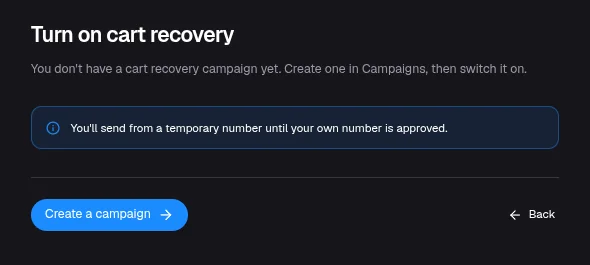
Check your first texts
- Open the campaign in Campaigns, hover the play icon to open Send Test, enter your mobile number and click Send Test. See Send yourself a test.
- Wait for your next shopper to leave a checkout. The campaign waits before its first text, set by Start after on the trigger, to give shoppers time to finish on their own.
- Open the campaign to see texts sent, replies and recovered orders.
Campaigns to add next
Once cart recovery is running, these are common next campaigns:
- Order Placed: thank customers and answer questions after they buy.
- Subscription events, if you connected a subscription tool: recover failed payments and win back cancellations.
- One-time texts to your subscribers, once you have your own number. See Send a one-time text to your subscribers.