Send an automated text
Add a Send SMS step, personalize the message and attach a discount.
The Send SMS step sends a text automatically, with no agent involved. Use it for order thank-yous, reminders and payment-failed notices. You can use it in campaigns that start when something happens and in one-time sends to your subscribers.
Add the step
Add Send SMS
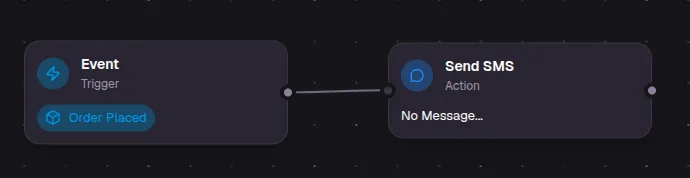
In your campaign, click the dot on the right edge of a step and choose Send SMS.
Write the message
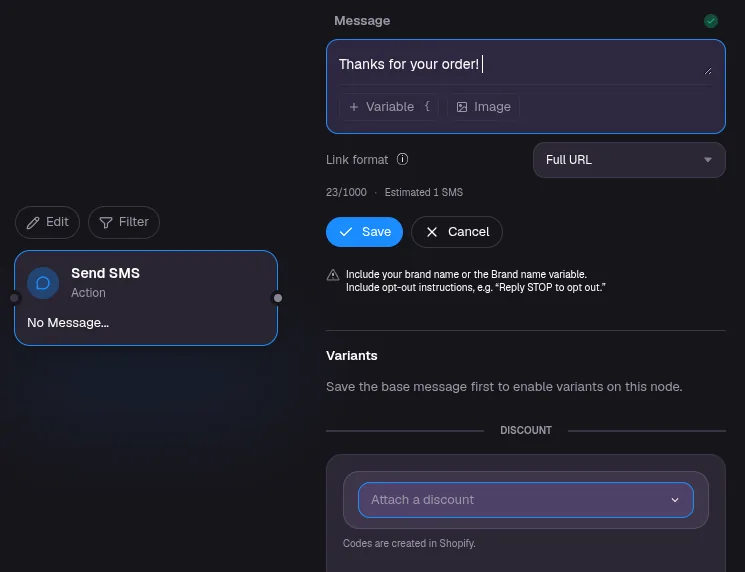
Click Edit and type your text in Message.
Personalize it
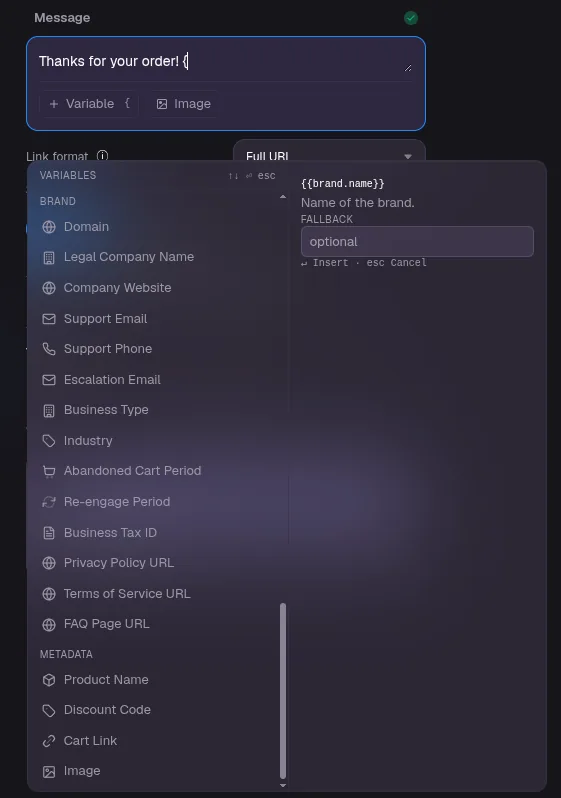
Click + Variable, or type {, to add details that change for each shopper, such as their first name, the product name, their order total or your store's support email.
Add a picture (optional)
Click Image to attach a picture. A text with a picture is sent as a picture message, shown in the counter as MMS.
Shorten links (optional)
Tick Shorten links to send every link in the message as a short link, such as https://yourbrand.lrc.sh/s/A7mP4kR9xT2vN6qB. Shoppers still land on the link you typed. Leave it unticked to send links as typed. Only links that start with https:// are shortened, and links in the message box are highlighted so you can check them. A link typed without https://, such as yourstore.com, gets a warning because it won't be shortened.
If your brand doesn't have a short link name yet, ticking the box shows a name field. Enter a name and click Save name. You need to be a brand administrator to save one. If a short link can't be made when the text sends, the full link is sent instead. See Use a branded subdomain for short links for more.
Attach a discount (optional)
Tick Attach discount code to link, then choose a discount. The discount applies to every link to your store in this message, each time this step sends. It doesn't change any other step, automation or message. On Shopify, a shopper who taps any of those links has the code applied when they check out. On other store platforms, the code is added to the checkout link. You don't need to add the Discount Code variable to the text, but you can if you want shoppers to see the code. The preview under the message notes when a discount is attached. Unticking the box removes the discount from the message.
Check the preview
Under the message, a phone shows the text as a shopper gets it, from your brand name, with a sample first name (Jamie), your store name and a sample checkout link filled in. With Shorten links ticked, links show as short links. Codes and links in the preview are examples. Click Preview to see the phone larger.
Save
Click Save in the panel, then Save at the top right of the editor.
Message length
The line directly under the message box shows the characters and how many texts the message will be sent as, for example "120 characters · 1 SMS segment (GSM-7)". It counts the message as previewed, with sample values and the links as they send. With Shorten links ticked, it also says how many characters the short links save. One text holds 160 characters. Longer messages are split into parts of up to 153 characters each, and each part counts as a text. Emoji and some special characters switch the message to UCS-2, where one text holds 70 characters and each part up to 67. A message with a picture shows as 1 MMS. The message template can be up to 1,000 characters, and the line warns you as you get close. Real names and links can be longer or shorter than the samples, so the number of texts can change when the message sends.
What every text should include
Mobile carriers review marketing texts. The app reminds you when a message is missing:
- Your brand name, typed out or as the Brand Name variable.
- How to stop, for example "Reply STOP to opt out."
Some words are often blocked by carriers. If your message contains one, the app shows a warning so you can reword it.
When texts are sent
Texts only go out between 8am and 8pm in the shopper's local time, or 12pm to 8pm in Texas. A text due outside those hours waits until the window opens.
Texts in a sign-up form's welcome campaign are the exception. They go out as soon as they are due, even outside these hours. This includes any follow-ups you add to the welcome campaign, so time those delays with care.
Example: thank customers after an order
- Create a Customer Event (Drip) campaign with the Order Placed trigger.
- Add a Delay of 3 days.
- Add Send SMS with a message like the one below, using the First Name and Brand Name variables.
- Send yourself a test, then turn the campaign on.
Hi [First Name], thanks for your order from [Brand Name]! How are you finding it? Reply STOP to opt out.