Send a one-time text to your subscribers
Text all your subscribers, a segment, or the people who joined through a sign-up form or an imported list.
A Scheduled (Blast) campaign sends one text, once, to a group of subscribers. Use it for launches, sales, restocks and announcements. You choose who gets it and when.
Create the send
Start a new campaign
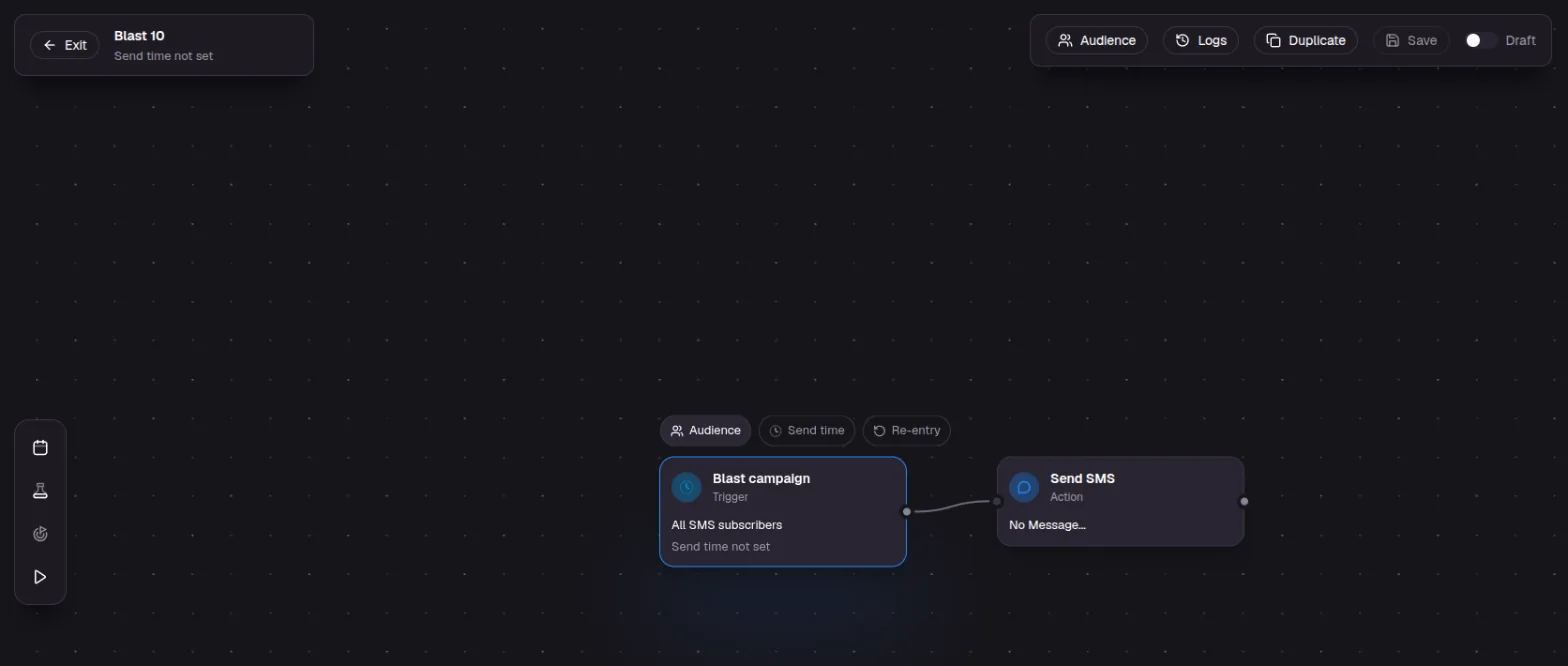
Go to Campaigns, click New Campaign and choose Scheduled (Blast). If it is greyed out or missing, email service@vyg.ai to turn it on. The editor opens with two boxes: Blast campaign, which holds the audience and send time, and Send SMS, which holds your message.
Choose who gets it
Click Audience on the Blast campaign box and pick one option. If you don't see Segment, email service@vyg.ai to turn it on.
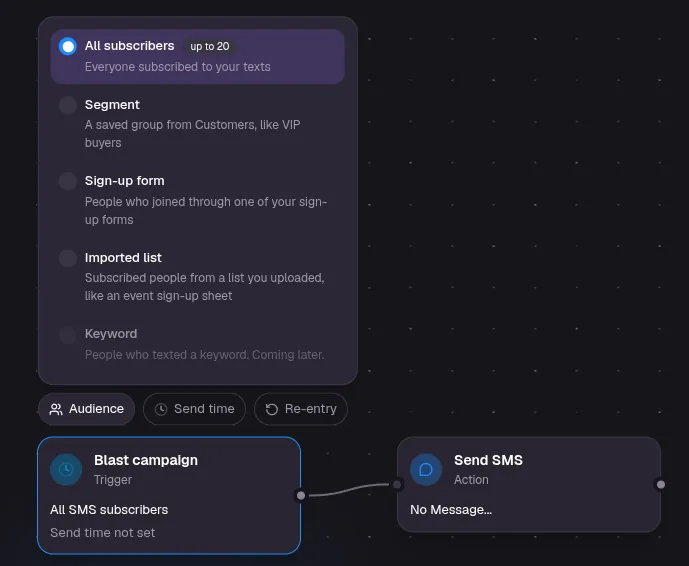
| Option | Who gets the text |
|---|---|
| All subscribers | Everyone subscribed to your texts. |
| Segment | A saved group of customers, such as VIP buyers. See Build a segment. |
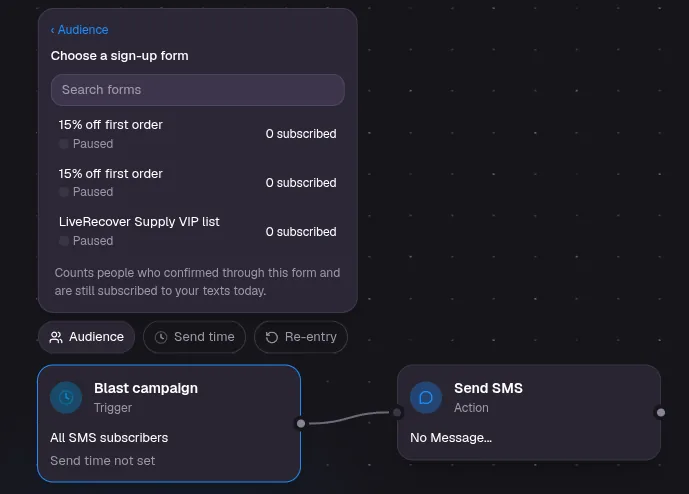
| Sign-up form | People who joined through one of your sign-up forms. |
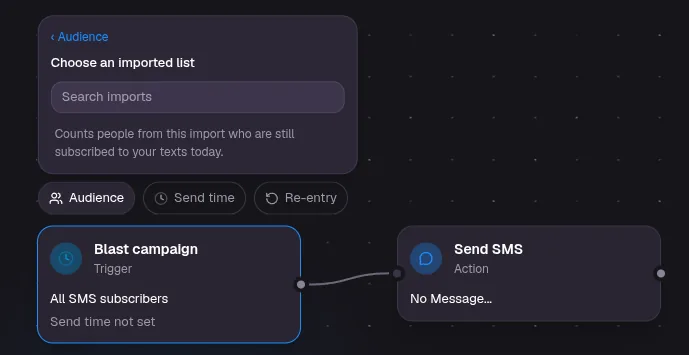
| Imported list | Subscribed people from a list you uploaded, such as an event sign-up sheet. |
If you pick Sign-up form or Imported list, choose the form or list on the next screen. Each one shows how many people are still subscribed.
Check the audience
Click Audience at the top right of the editor to see how many people are in the audience, how many can be texted and how many are left out, with the reason. For example, two people sharing one phone number get one text between them. The check looks at the first 1,000 people, and the full audience is checked again when the text is sent.
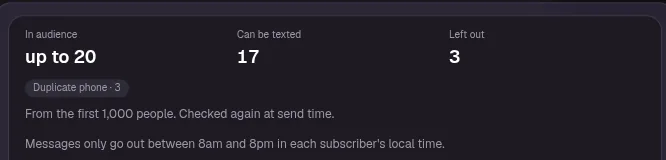
Only subscribed US and Canadian mobile numbers receive the text.
Write the message
Click Edit on the Send SMS box and write your text. It works the same way as in Send an automated text: add variables, a picture, a discount and your preferred link format.
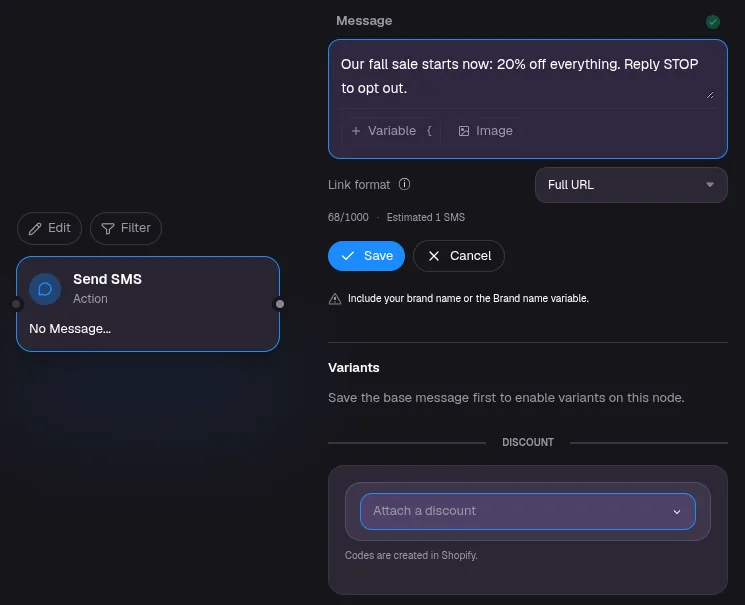
Cart and product details are empty in a one-time send, because the text isn't tied to a shopper's cart. Use first name, brand and discount details instead.
Pick the send time
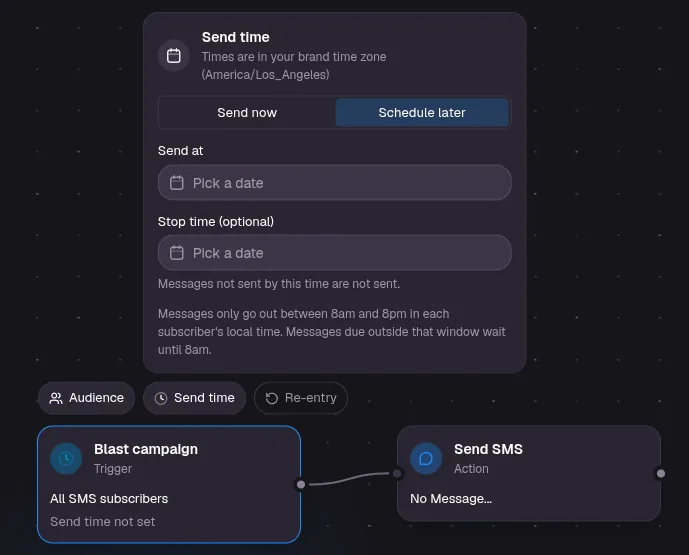
Click Send time. Choose Send now, or Schedule later and set Send at. Times are in your brand's time zone, shown on the screen.
You can also set a Stop time. Any texts not sent by then are not sent at all, which helps with time-limited offers.
Save and turn it on
Click Save, then turn on the switch at the top right. You see a summary of the audience and send time before it is scheduled.
Check before you send
Once the send starts, texts can't be recalled. To change the audience of a scheduled send, turn it off first. Once sending has started, duplicate the send to make changes. Send yourself a test first.
When texts arrive
Texts only go out between 8am and 8pm in each subscriber's local time, or 12pm to 8pm in Texas. If you schedule a send for 7am, subscribers in each time zone get it once the window opens for them.
Pausing a send
Turning the switch off pauses the send. Texts already sent are not recalled.
See the results
When the send finishes, its status in the Campaigns list changes to Sent. The row shows conversations, reply rate and revenue.