Connect your BigCommerce store
Connect your BigCommerce store so its carts, checkouts, orders and customers come into VYG.
Connecting your BigCommerce store lets VYG see carts, checkouts, orders and customers from your store. You need a connected store before you can build campaigns that start from store activity. It takes about five minutes.
Before you start
You need to be the store owner in BigCommerce, or have permission to create API accounts there. If you are not sure, ask the store owner.
Connect your store
Open BigCommerce in Integrations
In the left menu, click Integrations. On the BigCommerce card, click Connect.
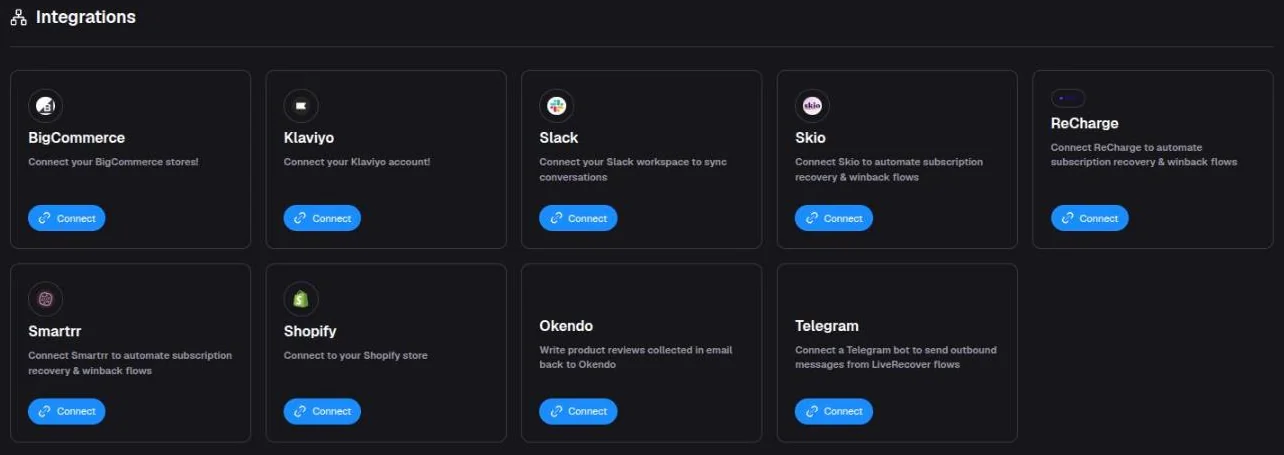
You can also go to Settings > Data sources, click Add data source and pick BigCommerce.
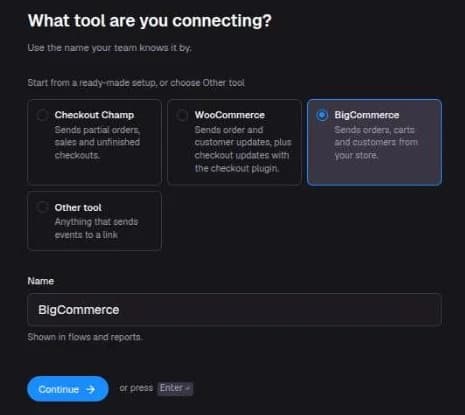
Click Continue
The What tool are you connecting? screen opens with BigCommerce already picked and named. You can change the name. It is shown in flows and reports. Click Continue.
Find your store
Under Your store address, enter the address shoppers use, like yourstore.com. Click Find my store.
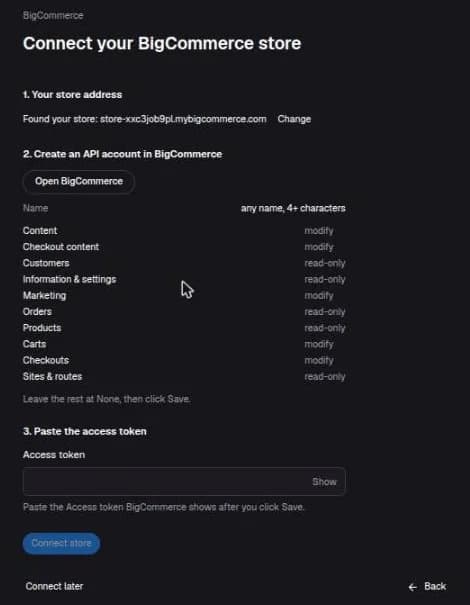
When we find it, you see Found your store with its address, and the next two steps appear. If we can't find it, see If we can't find your store.
Create an API account in BigCommerce
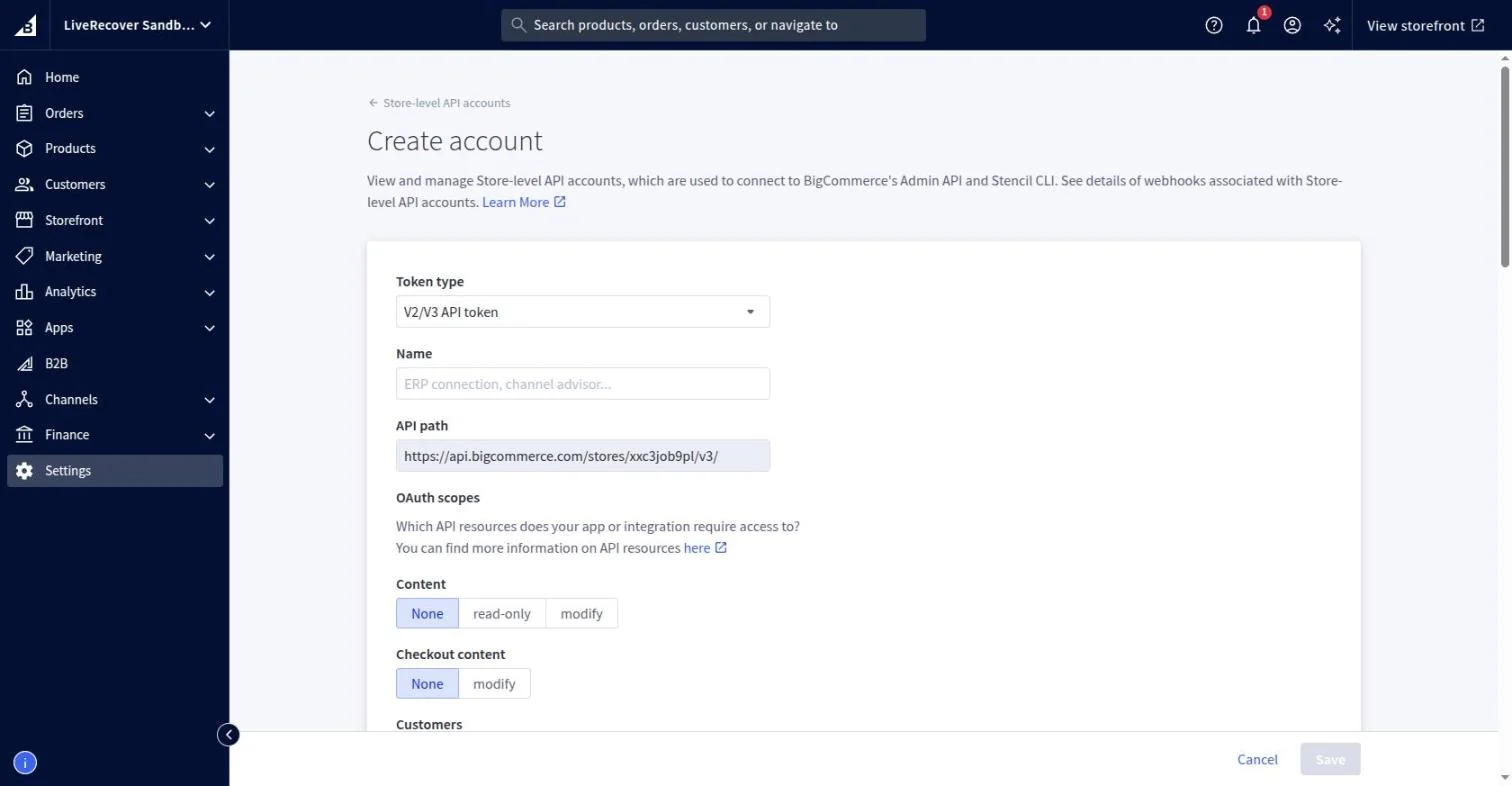
Click Open BigCommerce. BigCommerce opens its Create account page in a new tab. Sign in if BigCommerce asks you to.
In Name, enter any name with 4 or more characters, for example VYG.
Set the permissions
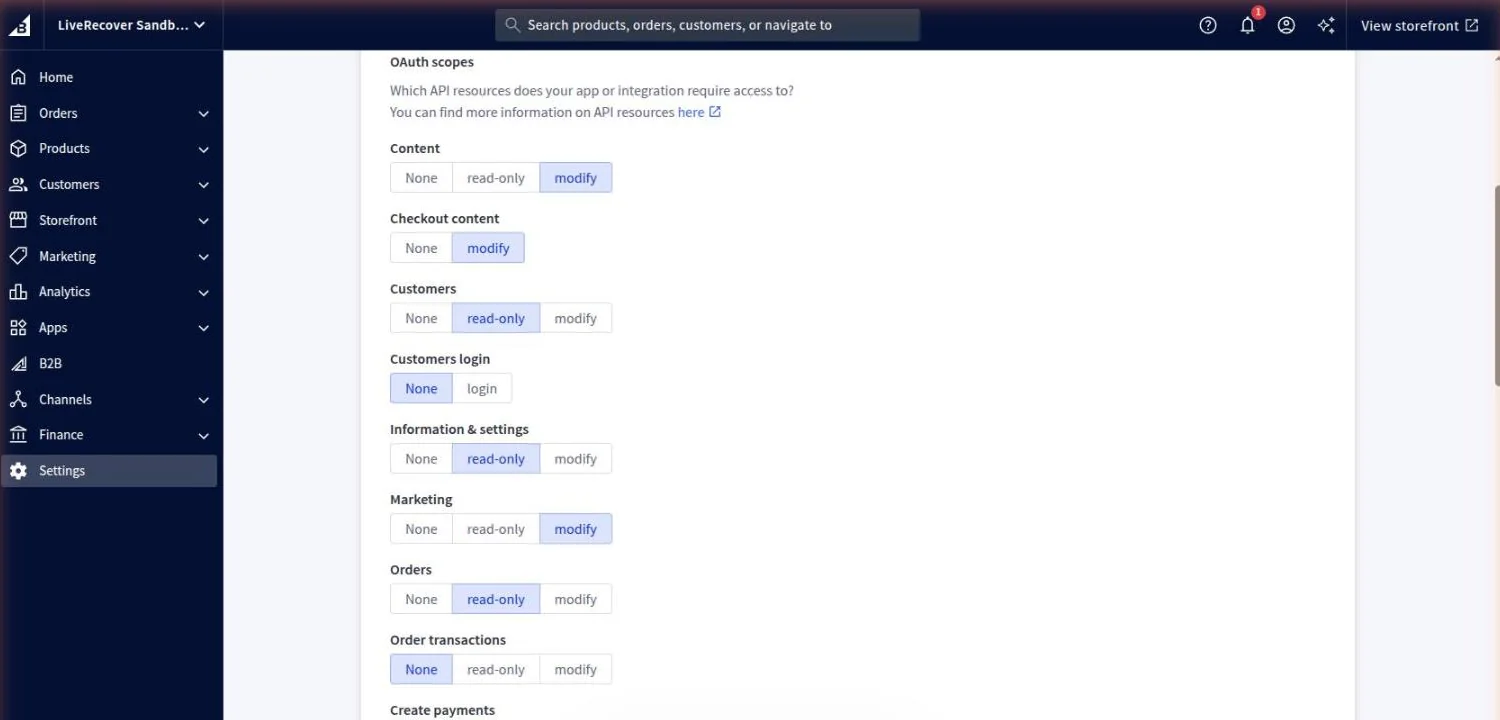
On the same BigCommerce page, set these permissions. They are in the same order as on the BigCommerce page, and VYG shows the same list.
- Content: modify
- Checkout content: modify
- Customers: read-only
- Information & settings: read-only
- Marketing: modify
- Orders: read-only
- Products: read-only
- Carts: modify
- Checkouts: modify
- Sites & routes: read-only
Leave the rest at None, then click Save.
Paste the access token
After you click Save, BigCommerce shows the access token and downloads a file with the same details. Copy the Access token.
Back in VYG, paste it into Access token and click Connect store. When the store is connected, click Continue.
Keep the downloaded file private, or delete it once your store is connected.
Done
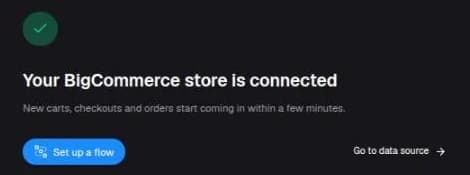
You see Your BigCommerce store is connected. Click Set up a flow to build a campaign, or Go to data source to open its page.
What happens next
New carts, checkouts, orders and customers start coming in within a few minutes. Until the first one arrives, the data source page shows Waiting for your first cart or order.
You can now set up a flow, for example one that texts shoppers who leave a checkout. See Create a campaign that starts when something happens.
Website tracking. If customer data features are turned on for your account, we add website tracking to your store when you connect it. You don't need to do anything. If they are not turned on, nothing is added to your store now. If they are turned on later, we add website tracking then.
Optional: text message consent
Use this if your checkout has a checkbox where shoppers agree to marketing texts. Without it, phone numbers from checkout are not used for marketing texts.
- In BigCommerce, go to Settings > Advanced settings > Address fields. Add a checkbox with one option to the billing address form, for example Text me offers with the option Yes. Show your approved consent wording next to it on the checkout.
- In VYG, go to Settings > Data sources, open your BigCommerce data source and click the Settings tab. Open Text message consent (optional).
- Enter the checkbox's Field ID (for example
field_25), its Field label and its Checked value. Click Save consent checkbox.
Each value can be up to 100 characters. To remove the checkbox, clear all three and click Save consent checkbox.
If we can't find your store
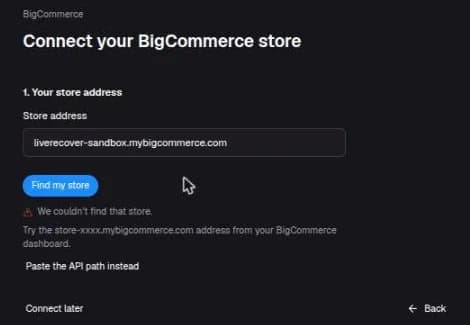
If you see We couldn't find that store, try one of these:
- Use the store-xxxx address. A store that hasn't launched yet shows a "Coming soon" page, so we can't find it from its address. Enter the
store-xxxx.mybigcommerce.comaddress from your BigCommerce dashboard instead, and click Find my store again. - Paste the API path. Click Paste the API path instead and carry on with the steps. On BigCommerce's Create account page, copy the API path. In VYG, paste it into API path, above the access token.
Change or disconnect
Go to Settings > Data sources, open your BigCommerce data source and click the Settings tab.
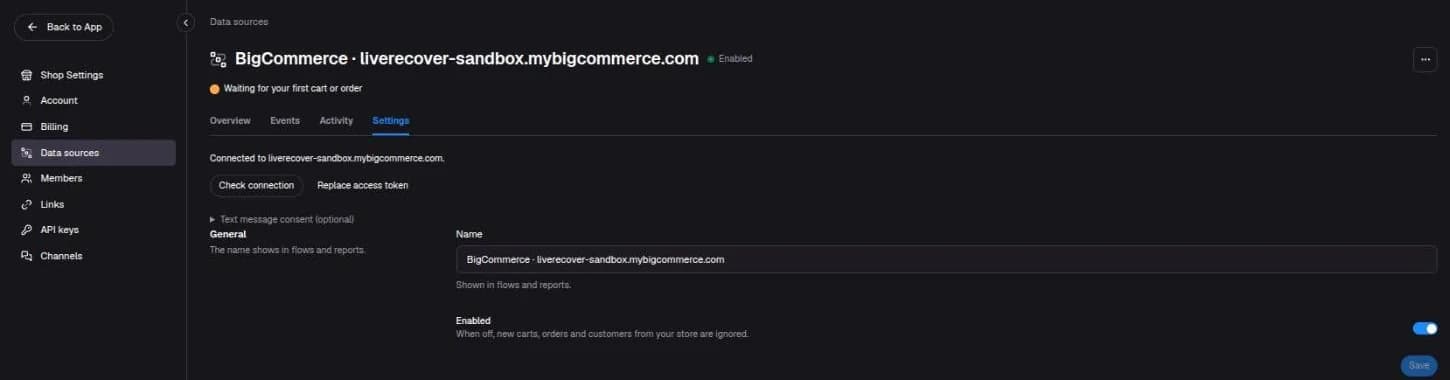
- Check connection: checks that your store is still connected. You see Your store is set up when it is. If the button says Finish setup instead, click it to finish setting up your store.
- Replace access token: use a new API account. Create one in BigCommerce with the same permissions, paste its access token and click Connect store. Once it's connected, delete the old API account in BigCommerce.
- Turn off: click the ... menu at the top right and choose Turn off, or use the Enabled switch, then click Disable to confirm. New carts, orders and customers from your store are ignored until you turn it back on. Your events and flows stay as they are. If your store has website tracking, it is paused too, and it comes back on by itself when you turn the data source back on. If you still see Website tracking was paused when this data source was turned off, click Turn it back on.
- Delete the API account in BigCommerce: this disconnects your store. The data source page then shows BigCommerce stopped accepting your access token. To reconnect, create a new API account and paste its access token.
Troubleshooting
- BigCommerce didn't accept that access token: make sure you copied the value labelled Access token, or create a new API account and paste its token.
- The API account is missing these permissions: create a new API account with every permission listed above, then paste its access token.
- This store is already connected to another account: the store is connected to another brand in VYG. If the store is yours, email service@vyg.ai.
- This store is already connected to your data source: the store is connected to another data source in your account. Click Open and the data source name to use that one, or disconnect the store there first.
Connect another platform with a data source
Connect a store that isn't on Shopify by adding a data source, handing the setup to your developer and checking that events arrive.
Connect your Whop business
Connect your Whop business so VYG can follow up on abandoned checkouts, declined payments and failed renewals, create promo codes and credit recovered sales.