Set up your account
The six Finish setup steps a new brand completes before VYG starts texting shoppers.
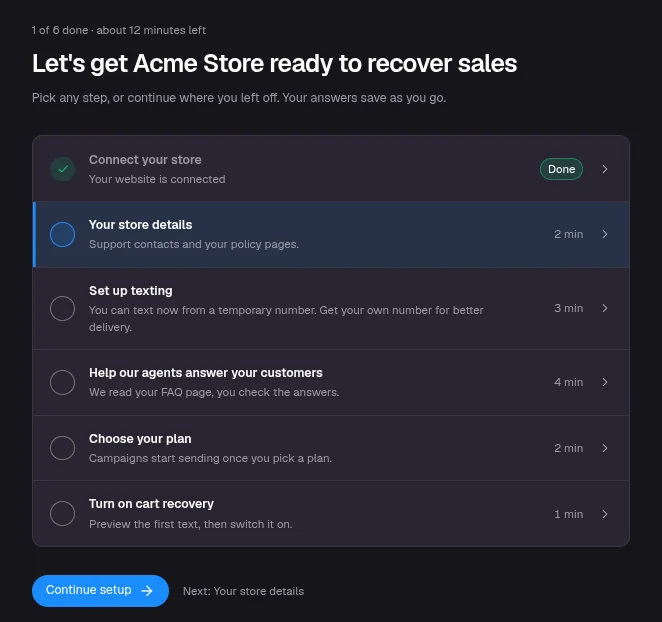
Finish setup is the checklist that takes a new account from sign-up to its first live campaign. It has six steps. The steps take about 15 minutes in total, apart from texting approval, which carriers take 1 to 2 weeks to review. You can text from a temporary number while you wait.
Where to find it
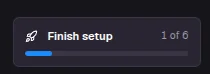
- In the left menu, click Finish setup. The row shows how many steps you have done, for example Finish setup 2 of 6.
- Under Conversations > Dashboard, the setup card shows your next step. Click Continue setup to open it.
- For the first 14 days after sign-up, the checklist opens on its own the first time you visit the Dashboard.
Each step opens in a panel. You can close it at any time and pick up where you left off. When every step is done, the checklist shows You're all set.
If your store is connected through a data source, step 6 stays open even after you turn on your own cart recovery campaign. It only counts the ready-made Shopify campaign. Your campaign still sends.
The six steps
| Step | What you do | Time | Open it |
|---|---|---|---|
| 1. Connect your store | Connect Shopify, or send setup instructions to your developer for any other platform. | 2 minutes | Open |
| 2. Your store details | Confirm your store name and website, add support contacts, choose where escalations go, and add your privacy policy and terms of service links. | 2 minutes | Open |
| 3. Set up texting | Start on a temporary number, or request your own number. | 3 minutes, then 1 to 2 weeks for carrier review | Open |
| 4. Help our agents answer your customers | We read your FAQ page and draft answers. You check and publish them. | 4 minutes | Open |
| 5. Choose your plan | Pick a plan and finish payment. | 2 minutes | Open |
| 6. Turn on cart recovery | Preview the first text shoppers get, then switch it on. | 1 minute | Open |
You can do the steps in any order. A step marked In review or Waiting on your developer counts as handled.
Step by step
Connect your store
VYG needs your store's carts, checkouts and orders to know who to text. Under Where do you sell?, pick how you sell:
- Shopify: enter your
.myshopify.comaddress and approve the connection in Shopify. See Connect your Shopify store. - Another platform or a custom-built store: your developer sends us your carts and orders. Click Send the guide to email them the setup instructions. The step checks itself off when your first order comes through. See Connect another platform with a data source.
- I only have a website: see Choose how to connect your store.
Add your store details
Four short screens. Each one saves when you move on.
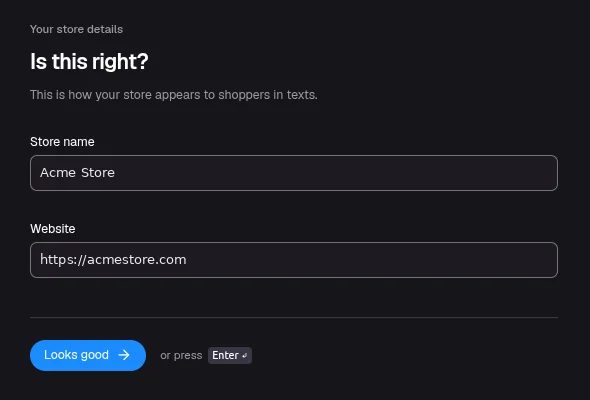
Check your Store name and Website. This is how your store appears to shoppers in texts. Click Looks good.
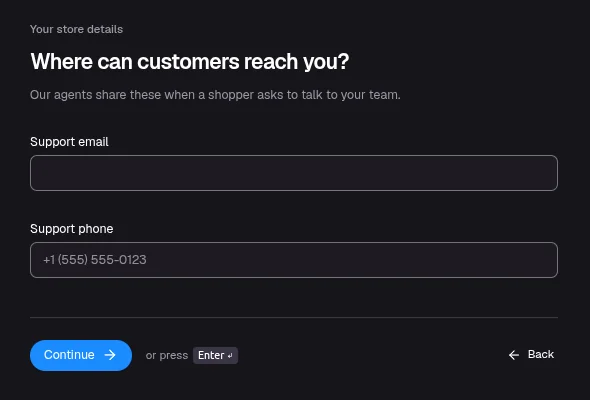
Add a Support email and Support phone. Our agents share these when a shopper asks to talk to your team.
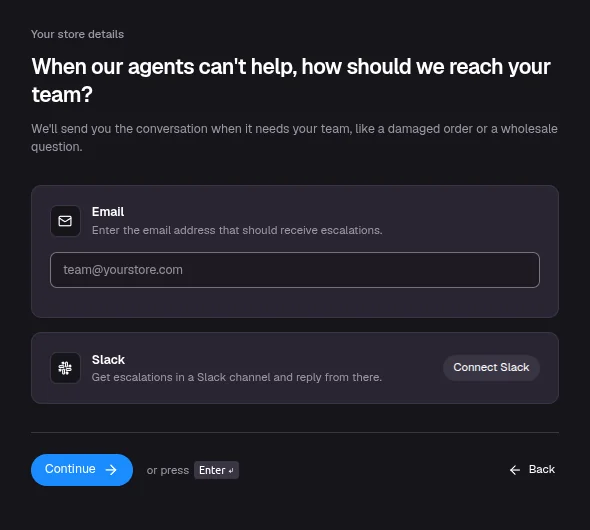
Choose where our agents send a conversation they can't resolve: an email address, a Slack channel, or both.
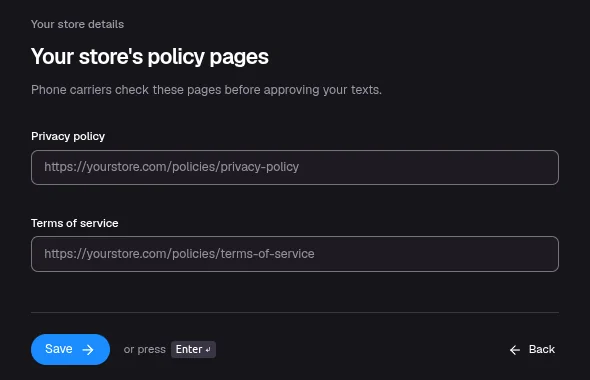
Add your Privacy policy and Terms of service links. Phone carriers check these pages before approving your texts. Both must start with https://. Click Save.
Set up texting
Every account starts with a temporary number, so you can text shoppers right away. Getting your own number means registering your business with US carriers. See Set up texting and get your own number.
Help our agents answer your customers
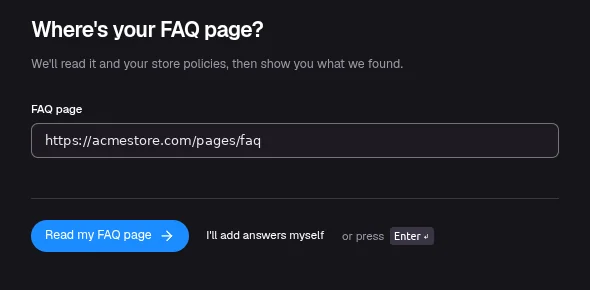
Enter the link to your FAQ page and click Read my FAQ page. We draft answers from it. Check them and click Keep all and continue. On Anything we missed?, answer any common questions that apply and click Save answers. Our agents use these answers when shoppers reply with questions about shipping, returns, sizing and similar topics.
If you don't have an FAQ page, click I'll add answers myself. You can add or edit answers later on the Knowledge Base page.
Open Help our agents answer your customers
Choose your plan
Pick a plan and click Continue to payment. Campaigns don't send until you have a plan. See Choose a plan and go live.
Turn on cart recovery
Your account comes with a cart recovery campaign that is switched off. This step shows the first text shoppers get, then lets you switch it on. See Choose a plan and go live.
FAQ
Help center
Step-by-step guides for setting up your account, connecting your store and building campaigns and sign-up forms in the VYG app.
Choose how to connect your store
Which connection to use for Shopify, WooCommerce, BigCommerce, other platforms and websites without a store, and what each one brings into VYG.