Create a campaign that starts when something happens
Build a campaign that texts shoppers after they abandon a checkout, place an order or change a subscription.
A Customer Event (Drip) campaign starts on its own each time a shopper does something on your store, for example leaving a checkout without paying. You decide what starts it, how long to wait, and what happens next: an automated text, a conversation with a VYG Conversations agent, or both.
New campaigns start as drafts
A new campaign is saved as a Draft and sends nothing until you turn it on. Build and test it first.
Create the campaign
Open Campaigns
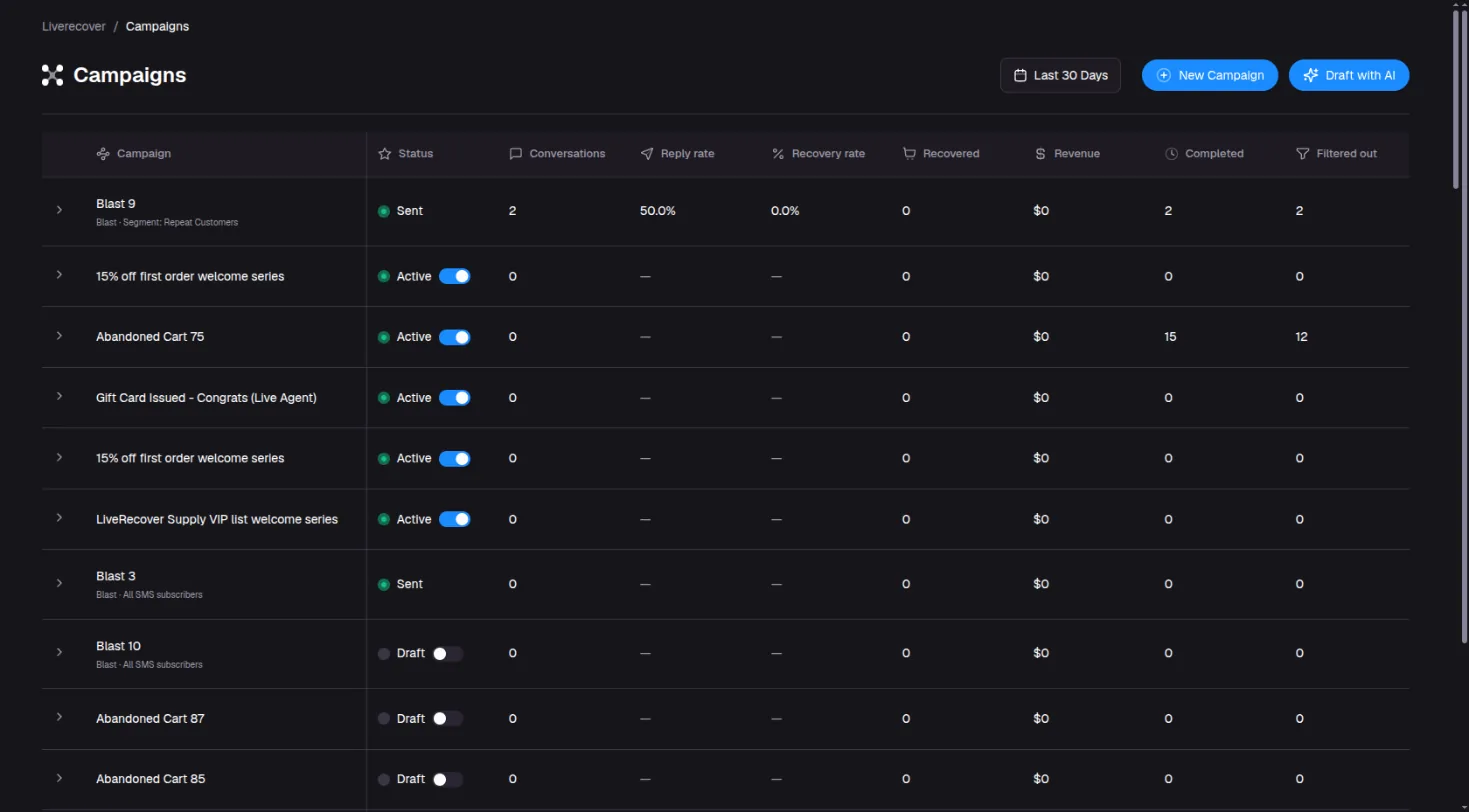
In the left menu, click Campaigns. The list shows every campaign with its status and results.
Pick the campaign type
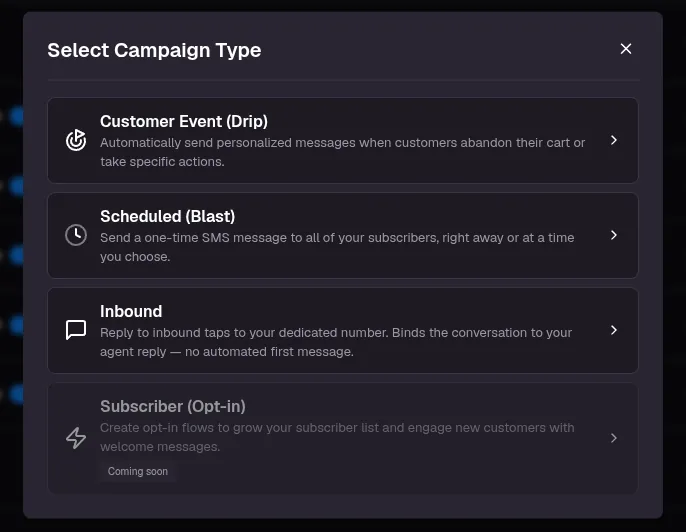
Click New Campaign, then choose Customer Event (Drip). The editor opens with a new draft.
Choose what starts it
Click the first box in the editor. This box is the trigger: it decides what starts the campaign. Open its event list. Pick the event that should start the campaign.
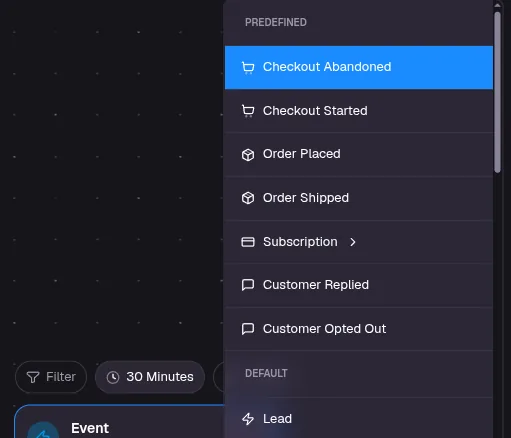
The most common events are:
- Checkout Abandoned: a shopper started checking out and left without paying.
- Order Placed: a customer completed an order.
- Subscription events, such as a failed payment, a cancellation or a paused subscription.
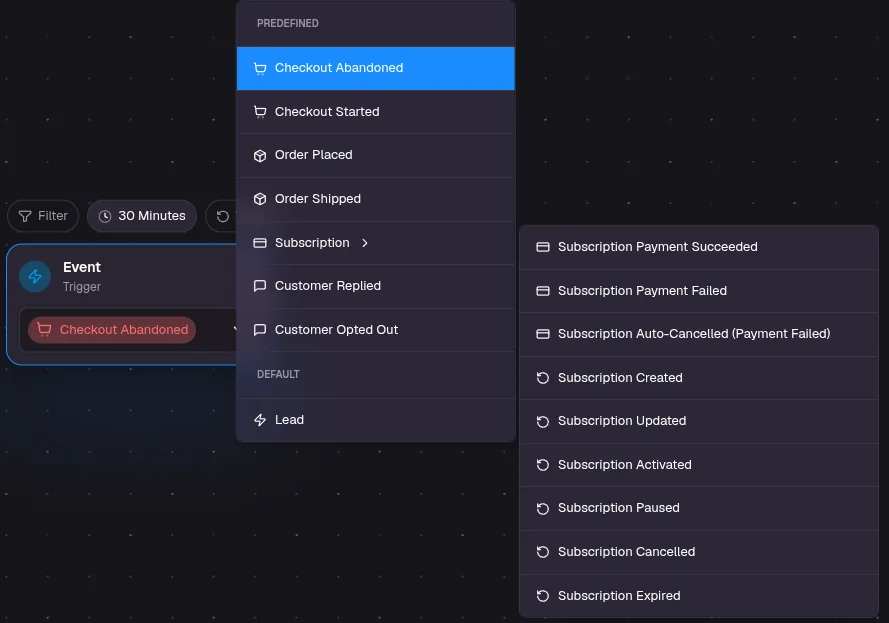
If you have connected other tools, their events appear further down the list.
The event you pick is saved straight away.
Set the wait before the first step
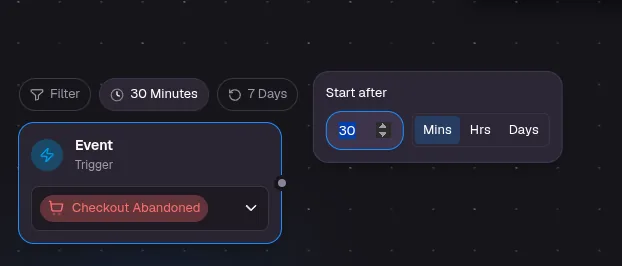
On the trigger box, click the wait time (for example 30 Minutes) and set Start after. For abandoned checkouts, 30 minutes to an hour gives the shopper time to finish on their own.
Decide if a shopper can enter again
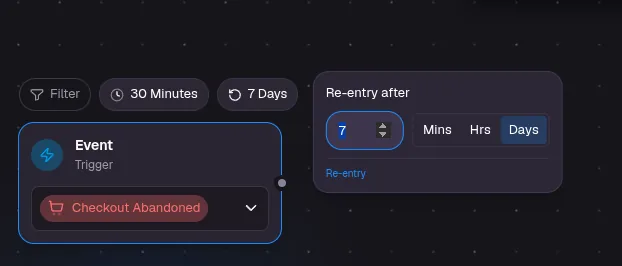
On the trigger box, click the re-entry time (for example 7 Days) and set Re-entry after. This is the shortest gap before the same shopper can start this campaign again. For example, with 7 days, someone who abandons two checkouts in one week gets your messages once.
Add steps
Click the dot on the right edge of a box to add the next step. The steps you will use most are:
- Live Agent · SMS: a VYG Conversations agent texts the shopper and handles the conversation. See Hand the conversation to a VYG Conversations agent.
- Send SMS: an automated text. See Send an automated text.
- Delay: wait before the next step.
- Split Test: split shoppers between paths, by a share you choose, to compare them.
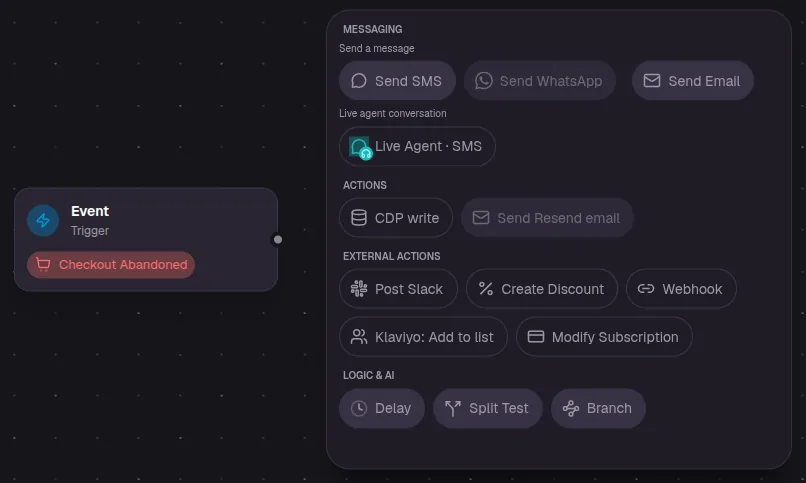
Your account may show more steps than the ones listed here.
Save
Click Save at the top right. The button turns blue when you have unsaved changes.

Use a Delay step
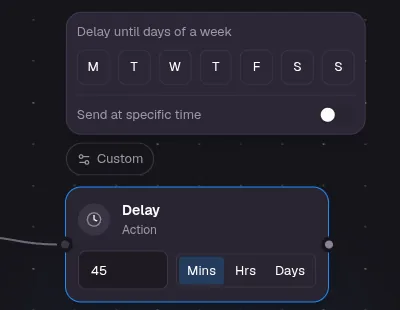
A Delay step waits before the next step. Set a number and choose Mins, Hrs or Days.
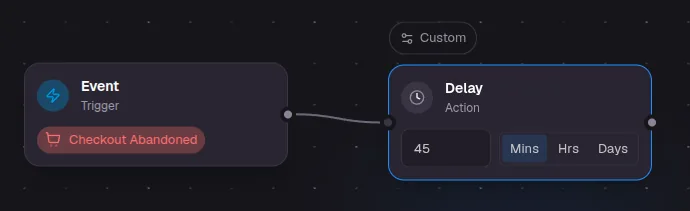
Click Custom to wait for certain days of the week, or to send at a set time of day.
Only include some shoppers
Click Filter on the trigger, then Add Rule. You can filter on details of the event, such as the checkout or cart, or on the customer, such as their purchase history.
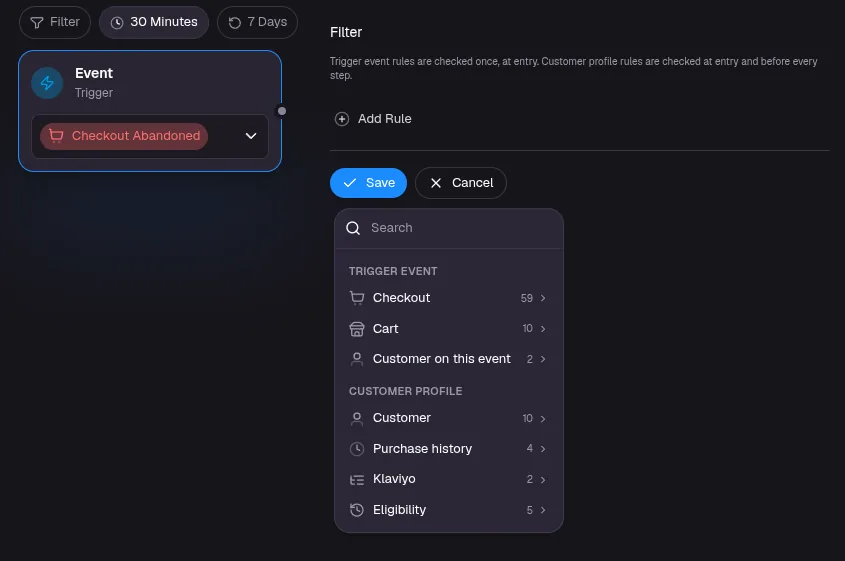
Rules about the event are checked once, when the shopper enters. Rules about the customer are checked at entry and again before every step. Under Eligibility you can, for example, stop the campaign for anyone who places an order after entering it.
Set start and end dates
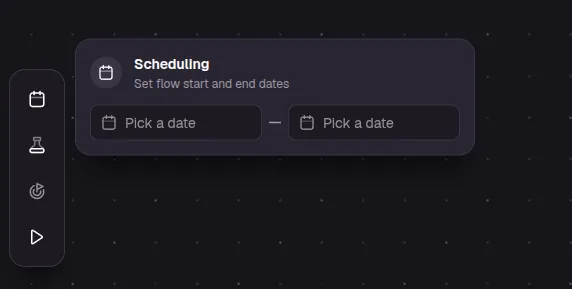
Hover the calendar icon on the left of the editor to open Scheduling. Pick a start date, an end date, or both. With no dates, the campaign runs from the moment you turn it on until you turn it off.
Measure the results with a holdout
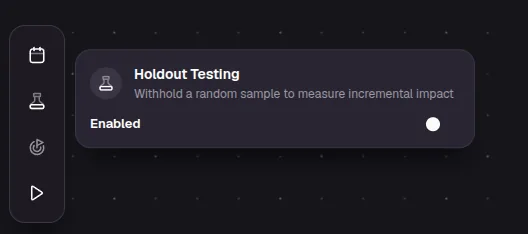
Hover the beaker icon to open Holdout Testing. When it is on, a random share of shoppers is left out of the campaign. Comparing them with the shoppers who got your messages shows how many extra sales the campaign brings in.
Send yourself a test
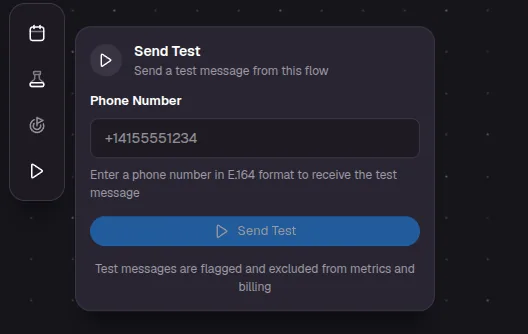
Hover the play icon to open Send Test. Enter your mobile number with the country code, for example +15551234567, and click Send Test. The test sends one of the campaign's messages, filled in with sample shopper details. Test messages are marked as tests so they stay out of your results.
Turn the campaign on
When you are happy with the campaign, use the switch at the top right of the editor, or the switch on its row in the Campaigns list.
Turning a campaign on texts real customers
Once the campaign is active, every shopper who matches it starts getting your messages. Send yourself a test first.
To stop a campaign, turn the same switch off.
See how it is doing
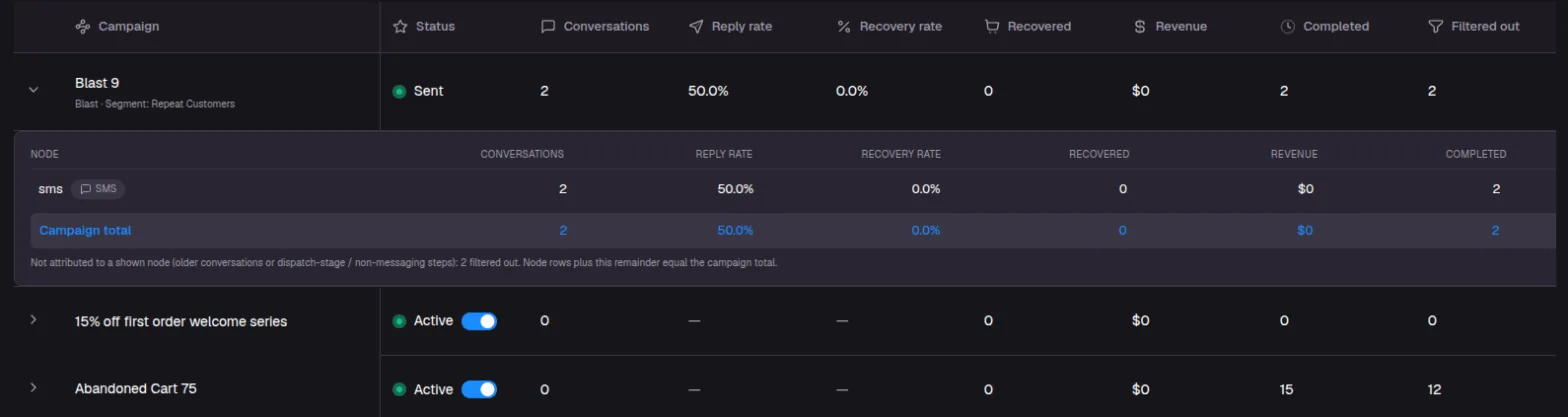
The Campaigns list shows conversations, reply rate, recovery rate and revenue for each campaign. Click the arrow on a row to see the numbers for each step.
Connect your Whop business
Connect your Whop business so VYG can follow up on abandoned checkouts, declined payments and failed renewals, create promo codes and credit recovered sales.
Hand the conversation to a VYG Conversations agent
Add a Live Agent step so a VYG Conversations agent texts the shopper and handles their replies.