Hand the conversation to a VYG Conversations agent
Add a Live Agent step so a VYG Conversations agent texts the shopper and handles their replies.
The Live Agent · SMS step puts a real person in the conversation. Your first message is sent automatically. When the shopper replies, a VYG Conversations agent takes over, answers their questions and helps them finish their purchase. It works well for abandoned checkouts and for subscription saves, where a personal reply makes the difference.
You write the first message and the reply the agent sends when the shopper answers. The agent handles the rest of the conversation.
Add the step
Open your campaign
Open a Customer Event (Drip) campaign. To start a new one, see Create a campaign that starts when something happens.
Add Live Agent · SMS
Click the dot on the right edge of the step it should follow, usually the trigger or a Delay. In the step picker, choose Live Agent · SMS.
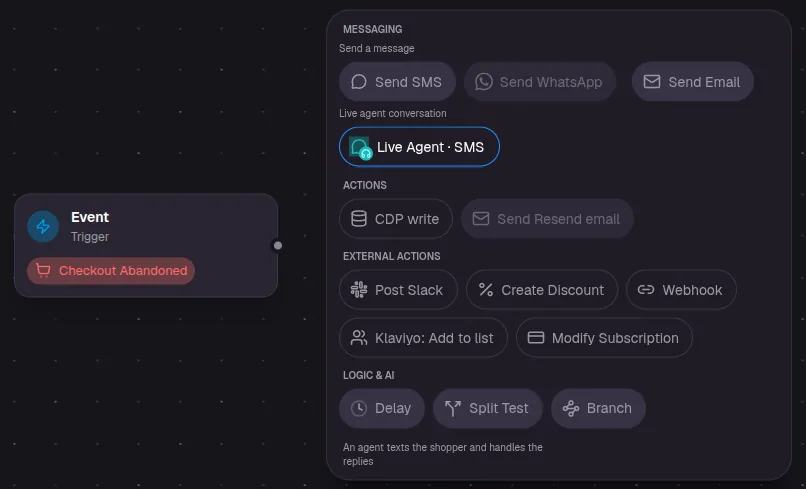
The step appears in your campaign with four options: Cart Link, Edit, Knowledge Base and Filter.

Write the messages
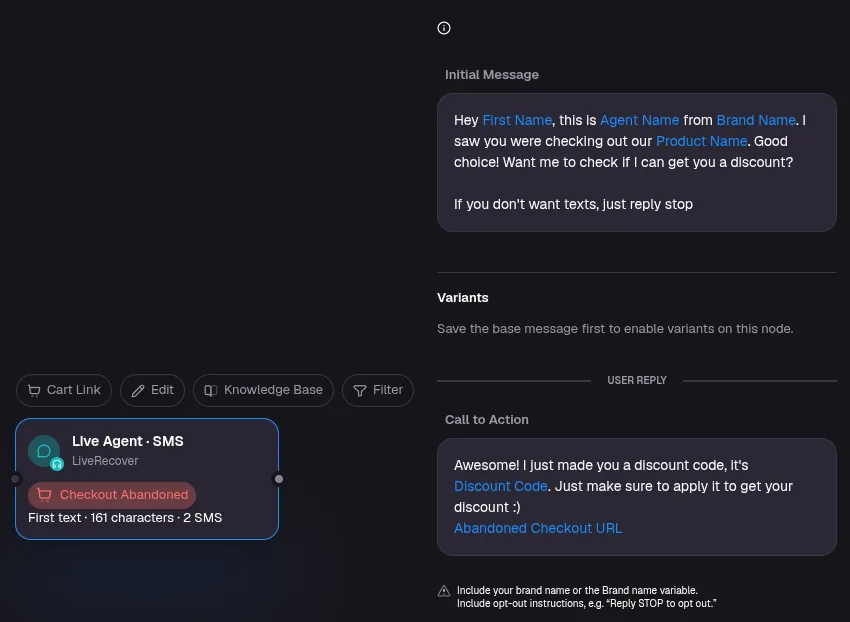
Click Edit. The panel has two messages:
- Initial Message: the first text the shopper gets.
- Call to Action: the text the agent sends after the shopper replies, usually with a discount and a link back to their cart.
Both come filled in with a starting message you can change. The blue tokens, such as First Name, Brand Name and Product Name, are filled in for each shopper.
Attach a discount (optional)
Under Discount, pick a code from Attach a discount, or click + Create new discount. Add the Discount Code token to your Call to Action so the shopper sees the code.
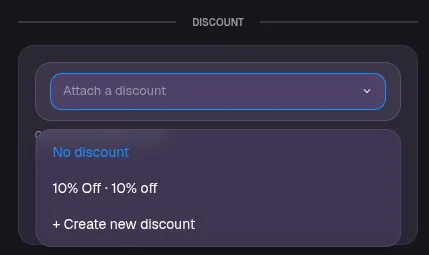
If a message uses the Discount Code token but no discount is attached, the app warns you. The code would show up blank.
Save
Click Save in the panel, then Save at the top right of the editor.
Set where the cart link goes
Click Cart Link to choose what the link in your messages opens:
- Include items from previous order: the items from the shopper's earlier order.
- Include specific items: products you pick.
- Use a URL: any page you choose.
You can also leave out collections or products you never want added to the cart.
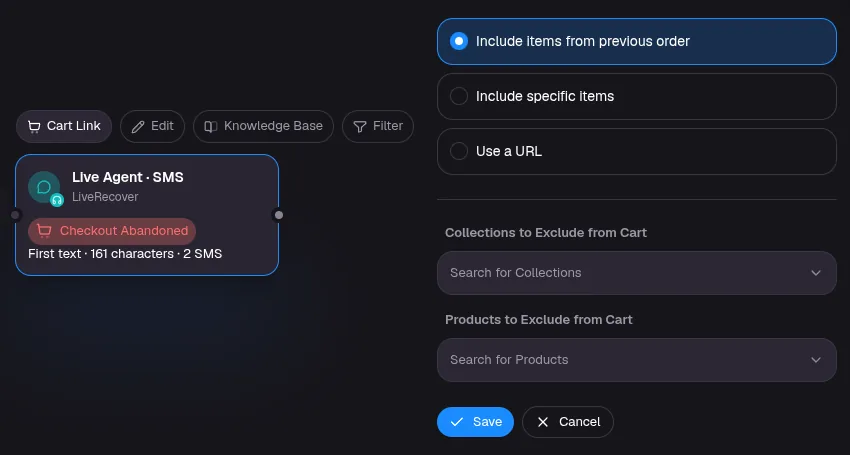
Cart Link sets where the Cart Link token points. For abandoned checkout campaigns, use the Abandoned Checkout URL token in your Call to Action instead, so the shopper returns to the checkout they left.
Give agents the facts they need
Click Knowledge Base, then Add Entry, to give agents information they can refer to, such as your return policy, shipping times or sizing advice. Each entry has a title and a body.
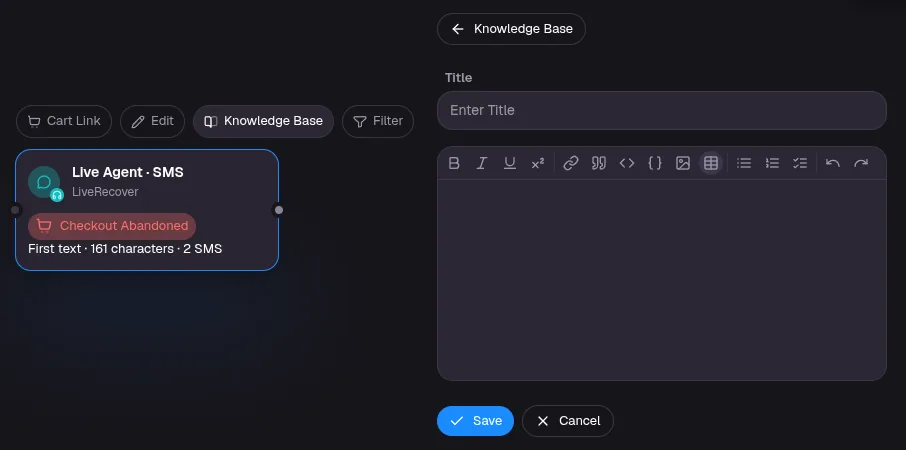
Entries are saved as soon as you click Save in the entry form.
Only send to some shoppers
Click Filter and add rules to limit who reaches this step. For example, you might only hand high-value carts to an agent.
Write messages that pass carrier checks
Mobile carriers expect every marketing text to say who it is from and how to stop. The app reminds you if a message is missing either:
- Include your brand name, or the Brand Name token.
- Include opt-out wording, for example "Reply STOP to opt out."
Keep the first message short. The counter under the message shows how many texts it will take.
Example flow
A common abandoned checkout campaign: Checkout Abandoned, a Delay of 45 minutes, then Live Agent · SMS.

Who receives it
The Live Agent step only texts shoppers who have a US or Canadian mobile number and are subscribed to your texts. Live Agent steps can't be used in one-time sends to your subscribers.