Data sources in the app
The Data sources pages in VYG settings, the event editor and who can change what.
A data source is a tool of yours that sends events to VYG over a webhook, such as a loyalty or subscription app. The app calls it a data source. The REST API and MCP tools call the same thing a provider, and an event set up on it an event definition. See Managing your integration for the API.
The Data sources list
Open Settings → Data sources. The list shows each data source with its status, how many events are set up on it and when the last event arrived.
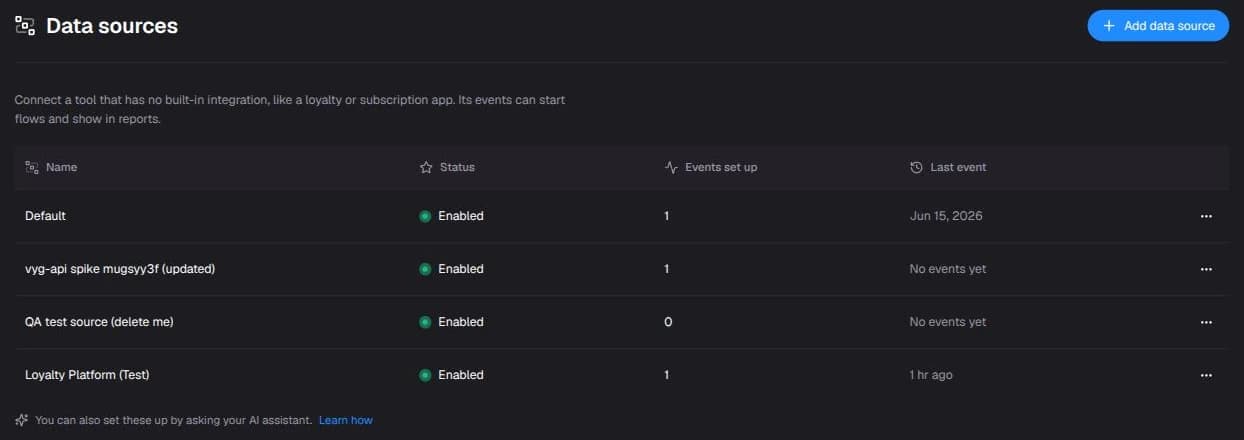
Add data source starts the guided setup. The quickstart walks through it step by step.
The data source page
Click a data source to open its page. Under the name is a connection line with three facts: whether events are arriving and when the last one came in, the Webhook URL with a copy button, and Connection details.
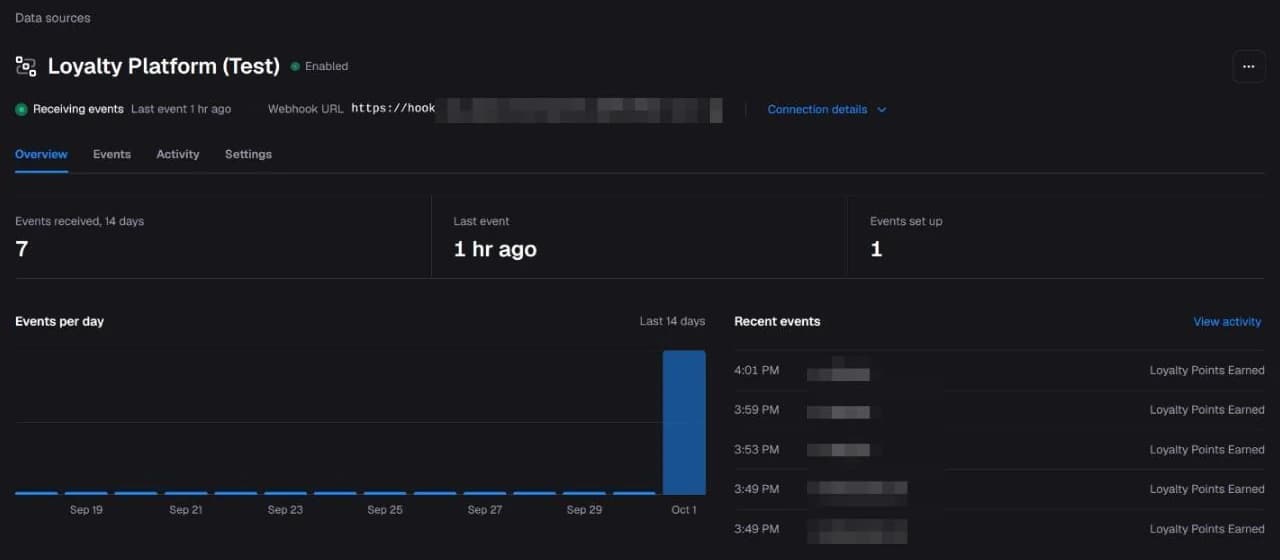
The page has four tabs:
| Tab | What it shows |
|---|---|
| Overview | Events received in the last 14 days, the last event, how many events are set up, a chart of events per day and the most recent events. |
| Events | Each event set up on this data source, with its status, when it was last received and its count for the last 14 days. Add event is here. |
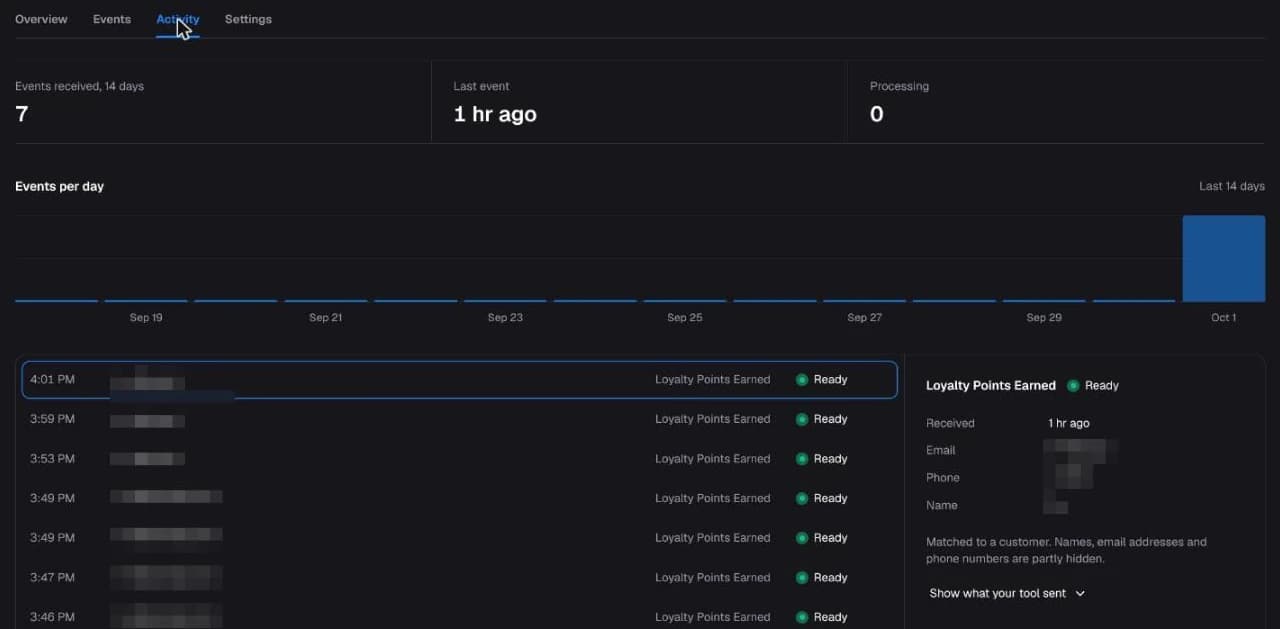
| Activity | Every event received, newest first. Select one to see what arrived and which customer it matched. |
| Settings | The name, Enabled, the connection (webhook URL, signing secret, security check), where your tool puts the event name and the data source ID. |
The data source ID on the Settings tab is the provider_id the API uses.
On the Activity tab, the panel next to the list shows when the selected event was received, the customer it matched and Show what your tool sent. Email addresses, phone numbers and names are partly hidden.
Connection details
Connection details opens a small panel with the security check and what your tool sends to prove the events are from it:
- For a data source that signs its events (the default), it shows the signing secret, always hidden. VYG shows the secret once, when the data source is created or the secret is replaced.
- For a data source that sends a secret header, such as Checkout Champ, it shows the header name and its value. The value stays hidden until you click Show.

For a data source that signs its events, Replace signing secret creates a new secret and shows it once. Paste it into your tool. The old secret keeps working for 24 hours, so you can update your tool without dropping events. See Rotating your secret.
Replacing the secret does not create or revoke any API key. To manage a data source over the API, use a
vyg_ba_ key from Settings → Data API Keys. See API keys.
Security check
The security check is how VYG confirms that a request came from your tool. Change it on the Settings tab.
| In the app | What your tool sends | Details |
|---|---|---|
| Signing secret (recommended) | An HMAC-SHA256 signature of the body in x-vyg-signature. | HMAC Verification |
| Secret header | A fixed secret value in a header you name. | Static Header |
| Allowed IP addresses | Nothing extra. Requests must come from the listed addresses. | Source IP |
Changing the security check on a live data source turns away your tool's events until the tool is changed to match.
Adding an event
Add event on the Events tab opens a guided flow that asks one question per screen:
- Paste an example event. Paste one event exactly as your tool sends it.
- The event's name in your tool. VYG reads it from where your other events put it, for example
order.placed, and asks you to confirm it. - What should we call it? The name shown in flows and reports.
- Customer details. When the data source already has events, VYG offers to reuse their email, phone and order or record ID fields, checked against this example. A field the example doesn't have gets a fresh suggestion or its own question.
- More details, optional. See the event editor for what each group holds.
- Conversation panel, optional. Values your team sees next to the conversation.
- Review. A one-line summary and an Edit link for each answer. Add event saves it.
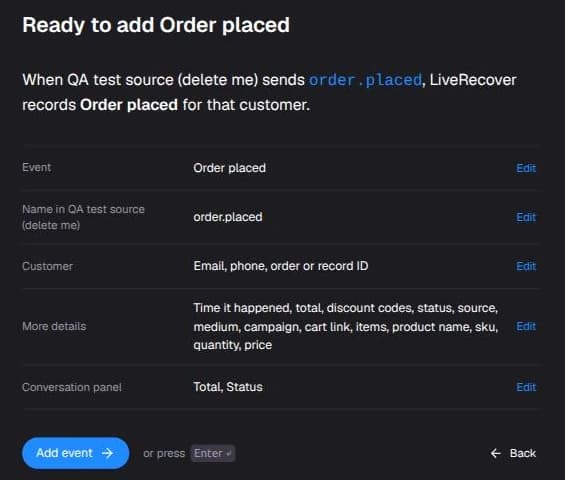
Nothing is saved until you click Add event on the Review step. Open full editor, at the top of every step, keeps your answers and opens the event editor instead.
The event editor
Open an event from the Events tab. A saved event opens on its Activity tab, which lists the events received for it. The Settings tab has these sections:
- Details: the name, what your tool calls the event, and every field mapping.
- Conversation panel: the blocks your team sees next to a conversation, with a preview.
- Fields: the fields this event must include. An event that is missing one of them is turned away.
- More: turn the event on or off, a description, duplicate the event, and the event type and event ID.
Event type, for API users on the More tab is read-only, with Copy. VYG sets it from the name
when the event is created. It is the event definition's type in the API and MCP tools.
Field mappings
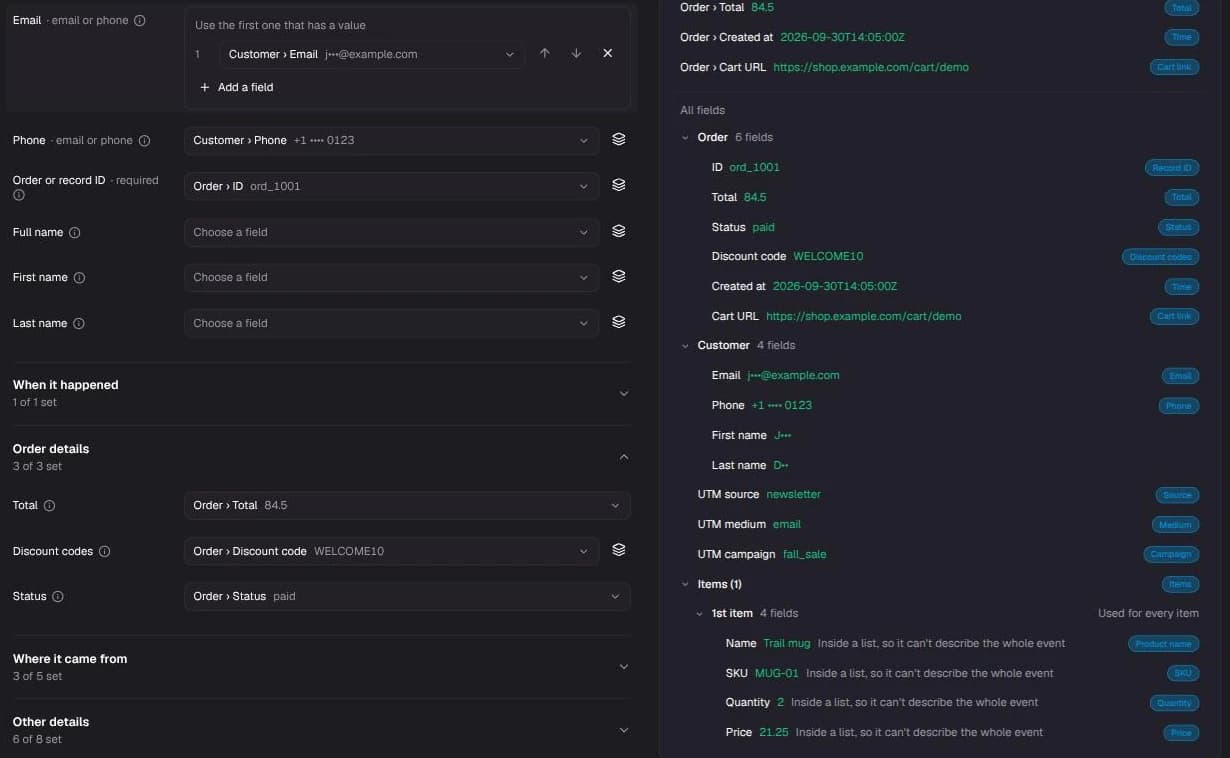
On the Details section, each mapping is a row with a field picker. The rows are grouped:
| Group | What it holds |
|---|---|
| Customer | Email, phone, order or record ID, full name, first name and last name. |
| When it happened | The time the event happened, and a time zone for times that don't include one. |
| Order details | Total, discount codes and status. |
| Where it came from | Source, medium, campaign, a page link with tracking, and tracking details. |
| Other details | Cart link, items, and per-item product ID, variant ID, name, SKU, quantity and price. |
Customer is open by default. An event needs an order or record ID, and an email or a phone. The other groups are collapsed with a one-line summary such as "3 of 3 set".
Next to the groups is the event's example: the latest event received, or the one you pasted. Fields are shown with readable labels such as "Customer › Email", and personal values are partly hidden. A chip marks each field that is already in use.
The field picker
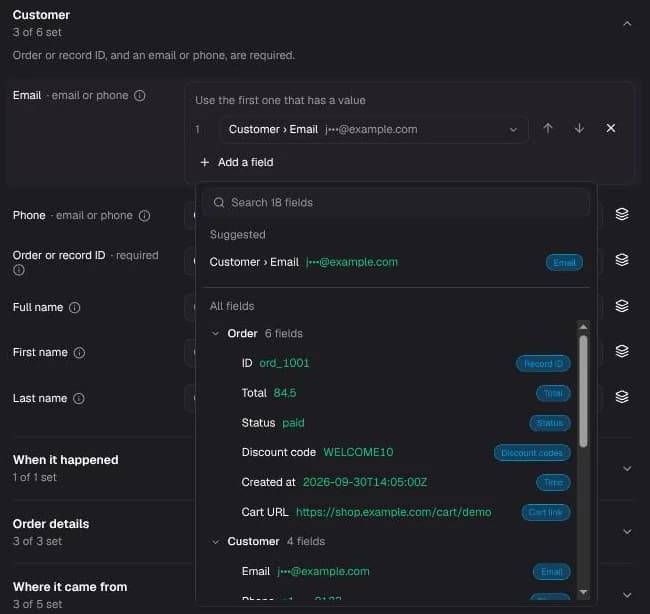
Click a row's picker to choose a field from the example. It has a search box, a short list of suggested fields and every field grouped as it appears in the event. Fields inside a list, such as order items, are picked from the first item and are used for every item.
Fallback fields
Some tools put a value in different places from one event to the next. The layers button at the end of a row turns it into Use the first one that has a value: an ordered list of fields. VYG reads them in order and uses the first one that is not empty. Use the arrows to reorder, and Add a field to add another. Discount codes is the exception: it takes one single code and one list, and VYG combines them.
Over the API, each of these lists is a mapping such as email_path: ["customer.email", "email"]. See
Identifier mapping.
Who can change what
Brand users can change everything described on this page, including the Order details and Where it came from mappings.
Whether an event counts as a sale, and the sale-tracking settings that go with it, are set by our team. Ask your account manager if an event should count as a sale.